 Easy
Easy
Compute Your Commute with Badger 2350
Learn how to work with APIs on your Badgeware device.
In the world of programming the humble API (Application Programming Interface) is used as a framework for developers to gain access to services / data. Many online services have an API, including Transport for London, which is the focus of this tutorial.
There are currently 11 tube lines in London.
- Bakerloo
- Central
- Circle
- District
- Hammersmith and City
- Jubilee
- Metropolitan
- Northern
- Piccadilly
- Victoria
- Waterloo and City
There are other rail services in London, such as DLR (Docklands Light Railway) and the new Elizabeth Line, but these are not considered "Tube" services. There are also bus, water and cable car services, the latter two being an exciting daily commute!
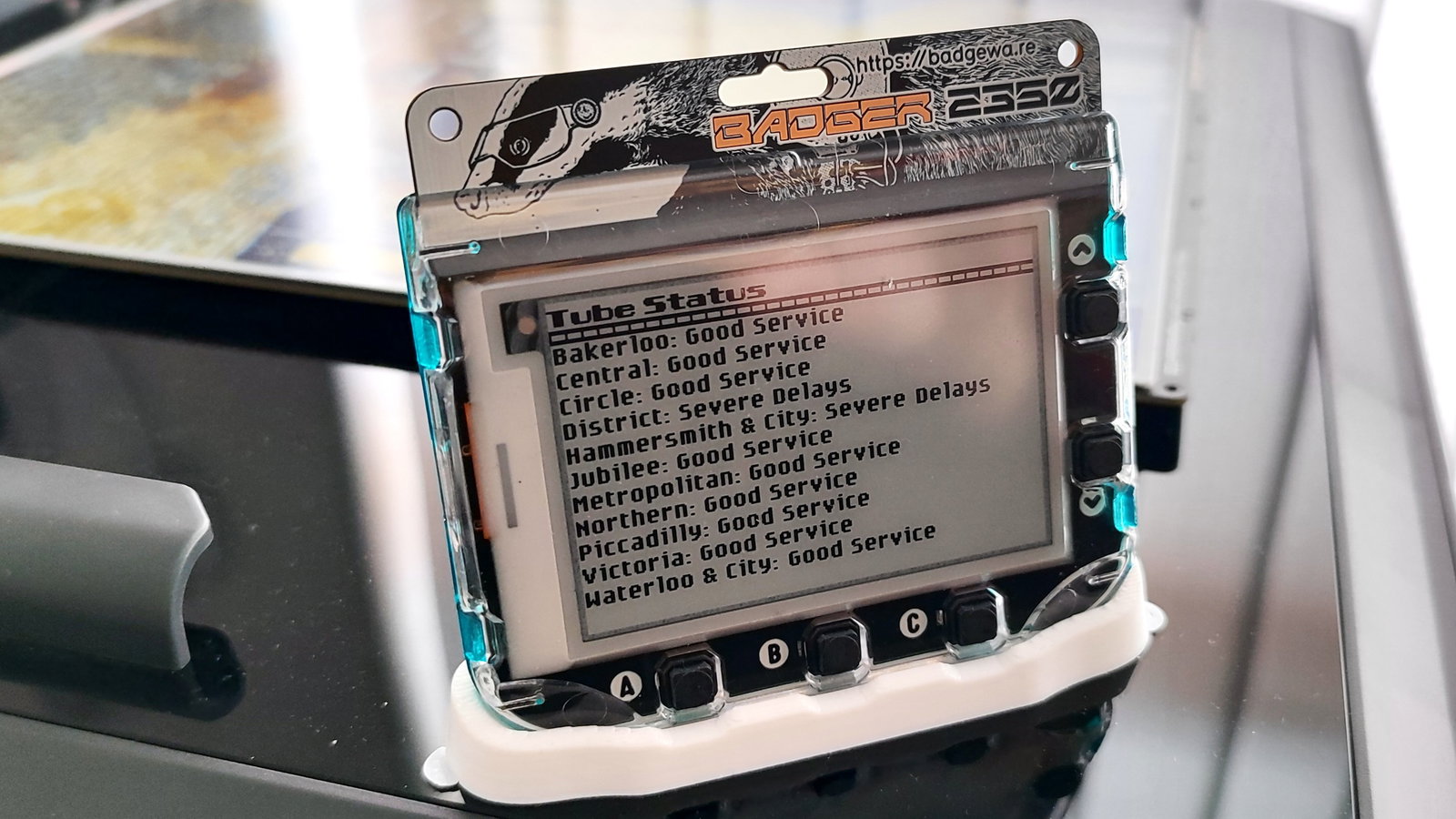
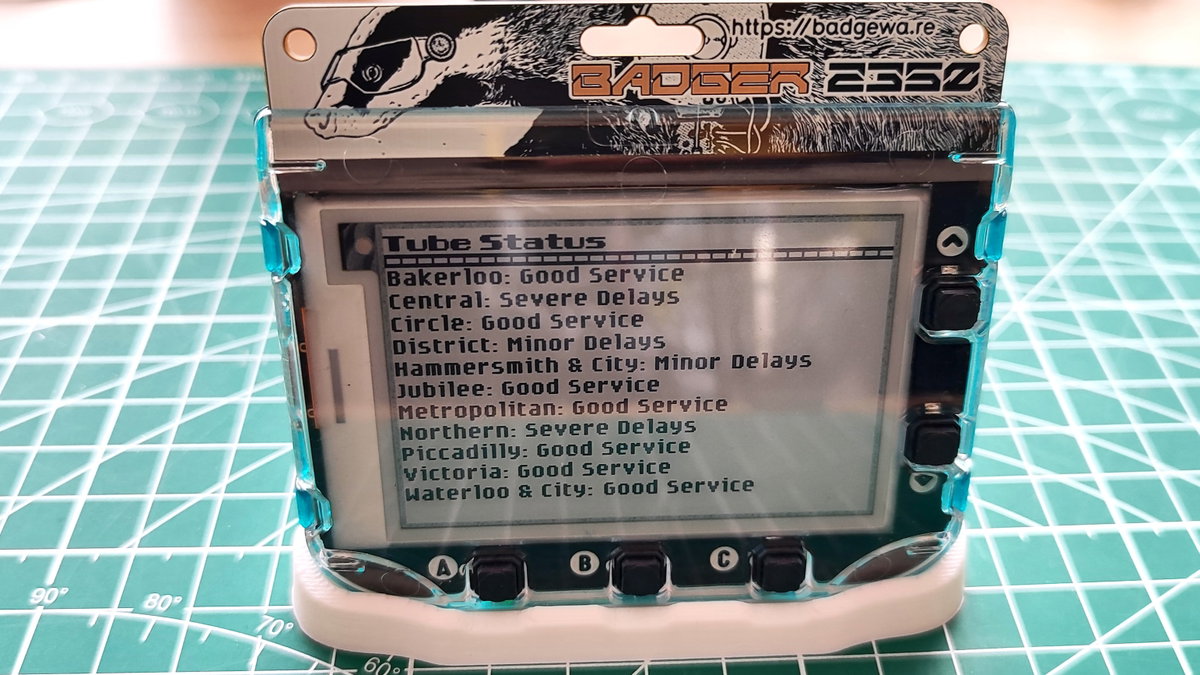
In this tutorial we are going to build a Badgeware app that uses the free and open API provided by Transport for London, to display the current status of the many London Underground ("The Tube") train services. The status updates every five minutes, giving us the latest information before we head out into the world.
This project can also be used with Tufty 2350, but you will need to tweak the code in order to do so. See the Badgeware site for more details.
What you'll need
- Badger 2350
- A computer running Windows, macOS or Linux
❗️ This guide assumes you're using v3 (or later) firmware on your badge. Before starting this project, please ensure you update your firmware to the latest version.
Coding the project
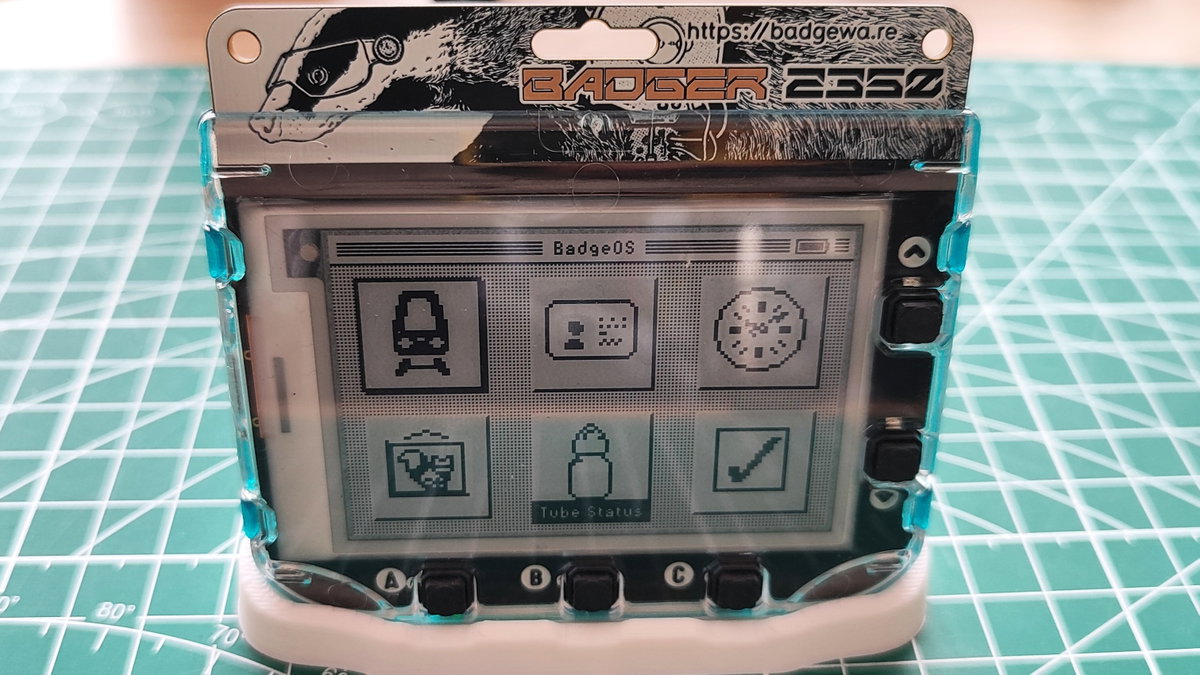
- Connect Badger 2350 to your computer and double press the RESET button to enter disk mode. In the file manager open the BADGER drive.
- On your Badger 2350, open secrets.py in a text editor and configure the SSID and password to match your network.
- Click on Save and then close secrets.py.
- Open the apps folder and inside, create a new folder called tube_status.
- Open Tube_Status and inside create a folder called assets. We won't be using this folder in this tutorial, but it is good practice to include one should we wish to add images to an app.
- Copy this icon to Tube_Status. The file should be called icon.png and it is a 24 x 24 PNG that will be the app icon.
- Create a blank Python file and name it init.py then open it in a text editor.
- Import a series of modules.
urequests: To send HTTP requests over a network.wifi: To connect to our WI-FI access point.time: Control the pace / pause the code.
import urequests as requests import wifi import time - Connect to Wi-Fi. This will use the details stored in secrets.py to connect to our Wi-Fi SSID.

wifi.connect()
- Create two rectangles to contain the app title text, and live tube line status updates. The first, title is from the top left of the screen (0,0) and goes to the far right (264) and then 20 pixels down. The second tubes starts 20 pixels down from the top left (0,20) and then goes to the far right (264) and to the bottom of the screen (176). Badger's screen is 264 pixels wide and 176 pixels tall.
title = rect(0,0,264,20)
tubes = rect(0, 20, 264, 176)
- Create the update() function which forms the main loop of the app.
def update():
- Using an if conditional test, check that Badger 2350 is connected to Wi-Fi. If it is connected, the case lights on the rear of Badger 2350 will flash three times.
    if wifi.connect():
        for _ in range(3):
            badge.caselights(1)
            time.sleep(0.1)
            badge.caselights(0)
            time.sleep(0.1)
- Store the API URL in a variable, url and then use it with requests to get the latest data. Then extract the data in a JSON format and store it in a a new variable called data.
        url = "https://api.tfl.gov.uk/Line/Mode/tube/Status"
        response = requests.get(url)
        data = response.json()
- Set the pen colour to white and then clear the display. Then change the pen color back to black Setting the pen colour before clearing the screen will clear the screen to that colour.
        screen.pen = color.white
        screen.clear()
        screen.pen = color.black
- Create an object, message and using a for loop, iterate over the returned JSON data, extracting the name of each tube line, and its current service status.
        message = "".join(
        f"{line['name']}: {line['lineStatuses'][0]['statusSeverityDescription']}\n"
        for line in data
        )
- Set the font to unfair (big and bold) and then draw the text "Tube Status" on to the screen inside the rectangle reserved for title.
        screen.font = font.unfair
        screen.text("Tube Status", title)
- Draw two parallel lines, starting 15 and 20 pixels down, and go across the screen. The lines are two pixels in thickness. The two lines form the start of "train tracks" the separate the app title from the data.
        line = shape.line(0, 15, 264, 15, 2)
        line2 = shape.line(0, 20, 264, 20, 2)
        screen.shape(line)
        screen.shape(line2)
- Using a for loop, create eight vertical lines, equally spaced across the width of the screen and between the two parallel lines. These will form the final part of the tracks tracks.
        for i in range(screen.width / 8):
            x = 8 * i
            screen.line(x, 15, x, 20)
- Set the font to nope (small but highly legible), then write the latest tube line statuses to the tubes rectangle. Update the badge and then wait for five minutes (300 seconds) before repeating the update loop.
        screen.font = font.nope
        screen.text(message, tubes)
        badge.update()
        time.sleep(300)
- Create an else condition to activate when there is no Wi-Fi connection. In Step 12 we start an if conditional test of our Wi-Fi connection. If there is no connection, here is where we write the code to handle informing the user that there is no Wi-Fi connection.
else:
- Set pen colour to white and clear the screen. Remember to change the pen colour back to black, otherwise any text will not be seen.
        screen.pen = color.white
        screen.clear()
        screen.pen = color.black
- Write "No Wi-Fi connection" to the title rectangle of the screen. This is normally where the app title is written.
screen.text("No Wi-Fi connection", title)
- Update the screen and then set the case lights on for one second.
        badge.update()
        badge.caselights(1)
        time.sleep(1)
- Outside of the function, use run() to execute the update function.
run(update)
- Save the code to Badger 2350 and press the RESET button to restart the board.
- Navigate to and select your app. The app should show the "No Wi-Fi connection" screen but it will connect and the case lights will flash to confirm. A few seconds later you will have the latest status of all the London Underground tube lines.
See it on YouTube
Complete Code Listing
import urequests as requests
import wifi
import time

wifi.connect()
title = rect(0,0,264,20)
tubes = rect(0, 20, 264, 176)
def update():
    if wifi.connect():
        for _ in range(3):
            badge.caselights(1)
            time.sleep(0.1)
            badge.caselights(0)
            time.sleep(0.1)
        url = "https://api.tfl.gov.uk/Line/Mode/tube/Status"
        response = requests.get(url)
        data = response.json()
        screen.pen = color.white
        screen.clear()
        screen.pen = color.black
        message = "".join(
        f"{line['name']}: {line['lineStatuses'][0]['statusSeverityDescription']}\n"
        for line in data
        )
        screen.font = font.unfair
        screen.text("Tube Status", title)
        line = shape.line(0, 15, 264, 15, 2)
        line2 = shape.line(0, 20, 264, 20, 2)
        screen.shape(line)
        screen.shape(line2)
        for i in range(screen.width / 8):
            x = 8 * i
            screen.line(x, 15, x, 20)
        screen.font = font.nope
        screen.text(message, tubes)
        badge.update()
        time.sleep(300)
    else:
        screen.pen = color.white
        screen.clear()
        screen.pen = color.black
        screen.text("No Wi-Fi connection", title)
        badge.update()
        badge.caselights(1)
        time.sleep(1)
run(update)
What have we learnt?
This simple project has taught us a plethora of skills.
- How to connect Badgeware to Wi-Fi.
- Using external APIs and JSON with Badgeware.
- Drawing shapes to Badger 2350's screen.
- Creating zones to contain different types of content on the screen.
- Working with fonts and pen colours.
The API doesn't have to be transport data, it could be NASA open APIs, Rick and Morty characters or perhaps this list of cool open APIs is more useful.
The raw data can be sliced, tweaked and used in your next Badgeware project.