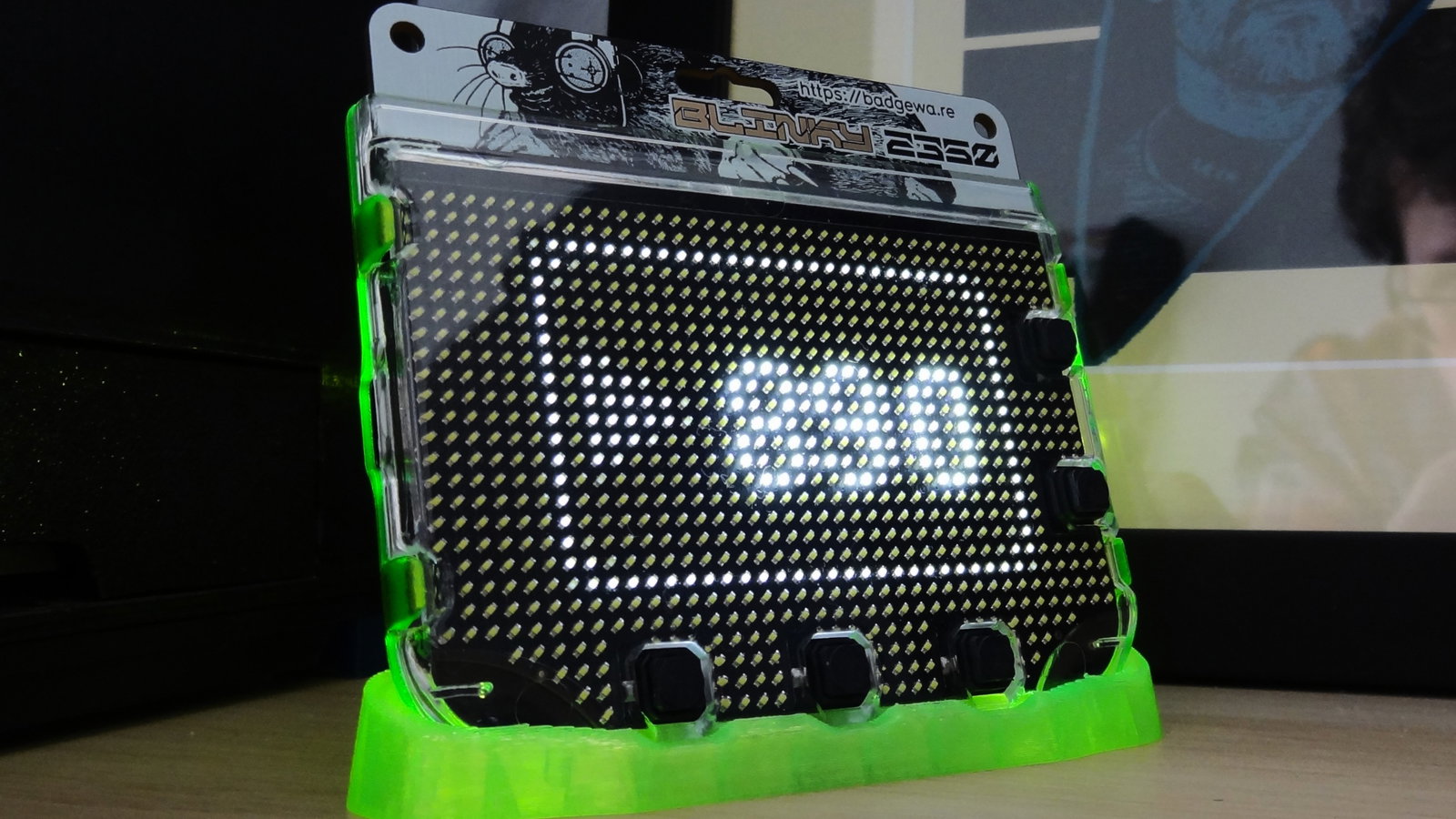
 Intermediate
Celebrate YouTube Milestones with Badgeware Blinky
Learn how to use Badgeware functions to add custom graphics and milestone animations to our YouTube subscriber app.
Following on from part one of this series, we're delving deeper into advanced Badgeware features with Blinky. We'll start by formatting the layout of the app that we created in part one. Then, we will re-write the app to feature custom animations when we hit key YouTube milestones (1,000, 100,000, and 1,000,000 subscribers) and other personal goals and targets.
What You'll Need
- Badgeware Blinky
- The latest Badgeware firmware release.
- Thonny or a text editor of your choice.
Centring Images And Text
For the first part of this guide we'll be using the code from the previous tutorial as our base. If you are following on from that guide, then the code should already be on your Blinky.
The goal of this first section is to simply centre the YouTube logo and subscriber value on the screen. If you don't want flashy animations and text, then this is for you.
Connect Blinky to your PC and press RESET twice to enter USB drive mode. Your PC will treat Blinky just like a typical USB flash drive.
Open your operating system's file manager and navigate to a drive called
BLINKY.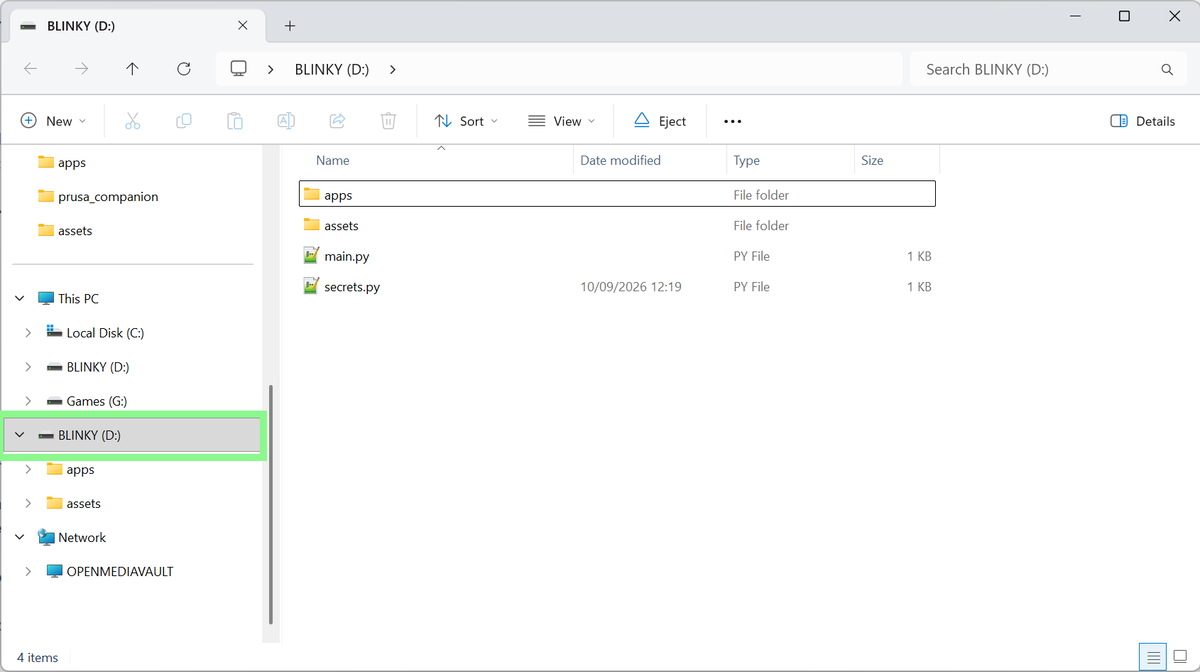
In your preferred text editor, open the
__init__.pyfile inside\apps\youtube_subs.Scroll down to
def draw_subscribers(count):.Underneath
value = format_count(count)add a new line to measure the width and height of the subscriber number text.w, h = screen.measure_text(value)Create a variable
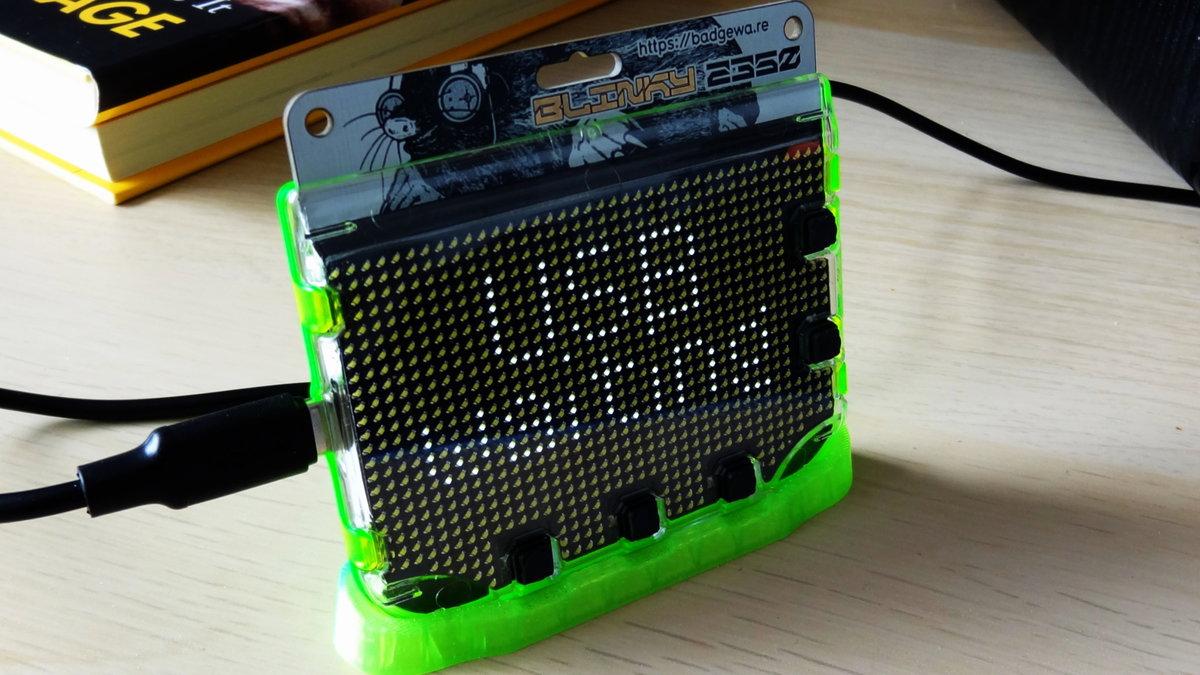
xto store the exact centre of the display. By deducting the width of the text from the width of the screen, then using floor division (dividing one number by another, rounding the result down to the nearest whole integer) we halve the values.x = (screen.width - w) // 2Look for
screen.blitandscreen.textand change their values to match these. Thexvalue denotes the vertical centre line of the display.screen.blit(sprite, x,0) screen.text(value,x,9)Save the code and press RESET on Blinky to restart in badge mode.
Scroll to the app, you should see the YouTube logo bounce on the screen.
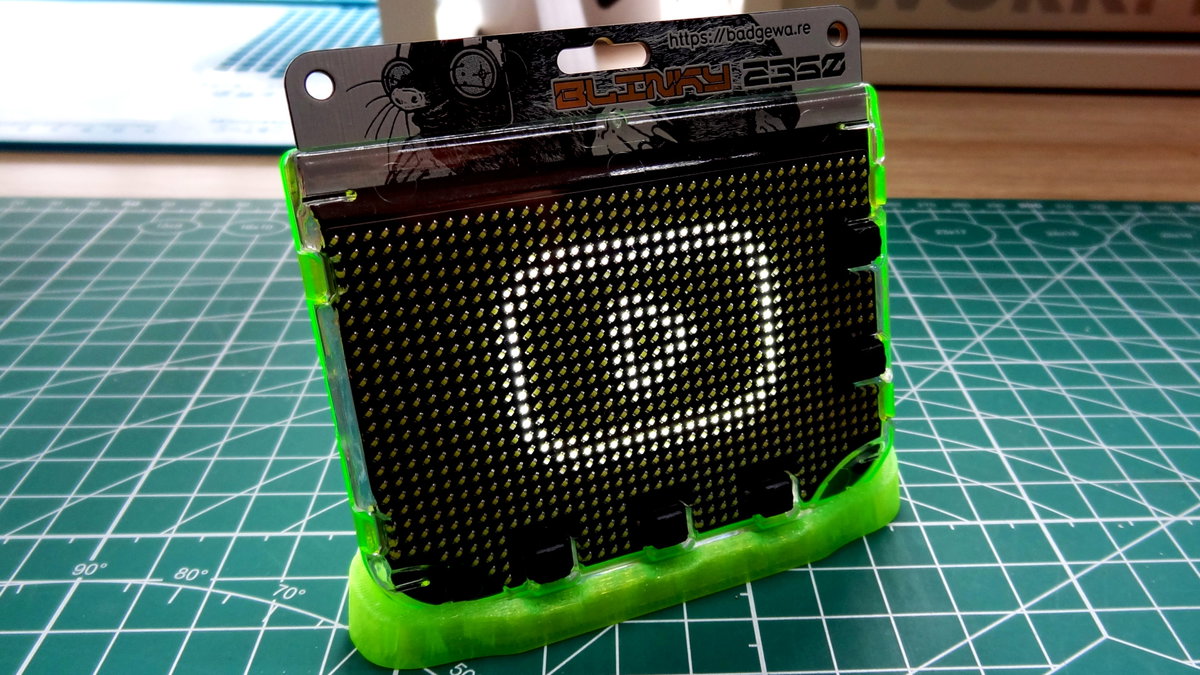
Press B to start the app. The case lights will flash until a solid Wi-Fi connection is made. Once connected, an API call is made and after a few seconds we will see the details on Blinky's display.
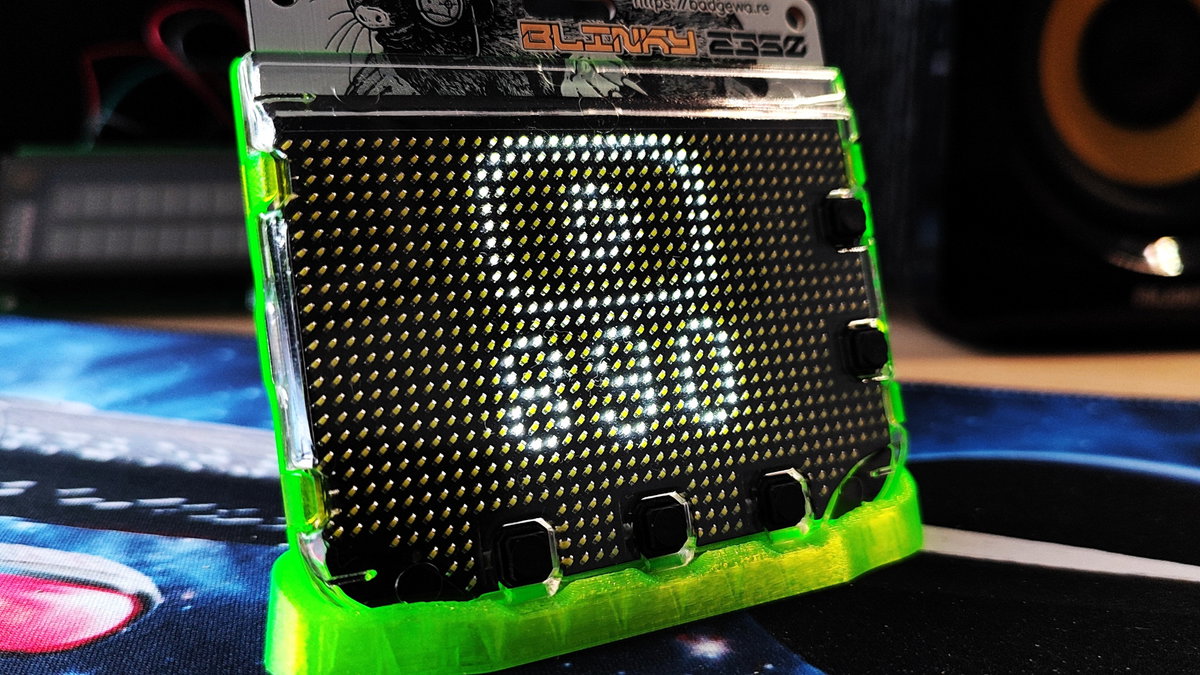
Complete Code Listing: Centred Image And Text
import wifi
import secrets
import time
import fetch
wifi.disconnect()
while not wifi.connect():
badge.caselights(1)
time.sleep(0.1)
badge.caselights(0)
time.sleep(0.1)
print("Connected! IP address:", wifi.ip())
badge.caselights(1)
API_URL = (
"https://www.googleapis.com/youtube/v3/channels"
"?part=statistics&id={0}&key={1}"
).format(secrets.CHANNEL_ID, secrets.API_KEY)
status = fetch.url(API_URL, every=3600)
last_subscribers = None
def format_count(n):
if n >= 1_000_000:
return "{:.1f}M".format(n / 1_000_000)
if n >= 1_000:
return "{:.1f}K".format(n / 1_000)
return str(n)
def draw_subscribers(count):
value = format_count(count)
w, h = screen.measure_text(value)
x = (screen.width - w) // 2
screen.pen = color.black
badge.clear()
screen.pen = color.white
sprite = image.load("assets/yt.png")
    screen.blit(sprite, x,0)
    screen.text(value,x,9)
badge.update()
def get_youtube_stats(data):
global last_subscribers
try:
stats = data["items"][0]["statistics"]
subscribers = int(stats["subscriberCount"])
print("Subscribers:", subscribers)
if subscribers != last_subscribers:
draw_subscribers(subscribers)
last_subscribers = subscribers
except (KeyError, IndexError):
print("Unexpected response:", data)
while True:
if status:
get_youtube_stats(status.json())
Advanced Subscriber Goals - Animations
This section completely rewrites the original code, while packing lots of features covering the major YouTube subscriber milestones.
The features are
- Custom boot animation for Wi-Fi connection.
- Animations for 1000, 100000, and 1,000,000 subscribers.
- Scrolling text.
- YouTube logo created using vector primitives and polygons. No PNG image!
We're using primitives, vector shapes and polygons that we can dynamically transform to create animations. For example the Wi-Fi connection "spinner" is a simple triangle that is spun 30 degrees each loop. Do that 12 times and you can spin the triangle 360 degrees to show the ongoing Wi-Fi connection. We can't do that with a PNG file. The Badgeware API makes working with primitives very easy to do. We have a full section in the Badgeware documentation that shows more example of working with vectors. In this version of the project we also show the exact number of subscribers, which can become a huge number if you're a popular channel. By using Badgeware API's scrolling text feature, coupled with controlling where the text can be displayed, we create scrolling text inside a vector version of the YouTube logo.
Project Foundations
We'll be reusing the project files from the first version. So we will have a youtube_subs app folder, with __init__.py and assets inside of it.
Connect Blinky to your PC and press RESET twice to enter USB drive mode. Your PC will treat Blinky just like a typical USB flash drive.
Open your operating system's file manager and navigate to a drive called
BLINKY.In your preferred text editor, open the
__init__.pyfile inside\apps\youtube_subs.Backup the original
__init__.pyto a safe place and then delete the contents of__init__.pyand save the file. There is a very small amount of code that is reused from the original version, but for clarity we'll start from a blank slate. The backup is optional, but you may want to keep the old code for future reference.Import a series of modules (pre-written Python code libraries that provide extra functionality).
- wifi: Badgeware specific helper function to use Blinky's onboard Wi-Fi chip to connect to a network and the Internet.
- secrets: Where our Wi-Fi SSID, password, and YouTube API key, and Channel ID are stored.
- time: Controls the pace at which the code runs.
- fetch: Badgeware specific helper function that we use to download data from the YouTube API.
- random: Introduces pseudo-randomness to our code. Primarily used to randomly place stars on the display.
import wifi
import secrets
import time
import fetch
import random
Set the display to use anti-aliasing for smoother and crisper vectors.
screen.antialias = X4Create an object
monainto which we loadMonaSans-Medium.afa font that comes pre-installed on Badgeware. We need this font as we shall be dynamically controlling the size of text later.mona = font.load("/system/assets/fonts/MonaSans-Medium.af")Set the screen font to use
mona.screen.font = monaCreate an object
unit_trianglethat is placed in the top left (0,0) of the display, a radius of one pixel and three sides. This creates a vector triangle replicating the play button of the YouTube logo.unit_triangle = shape.regular_polygon(0, 0, 1, 3)Ensure that the Wi-Fi is disconnected. This is strictly an optional step, but we found it prudent to ensure that any lingering Wi-Fi connections were dropped, and fresh connections made before moving onward.
wifi.disconnect()Using a
while notloop, check that we are not connected to Wi-Fi. In essence this loop will try to connect to Wi-Fi. Each time it isn't connected, it will animate a triangleunit_triangleto spin while blinking Blinky's case lights to show that it is doing something.while not wifi.connect(): for i in range(12): unit_triangle.transform = mat3().translate(screen.width//2, screen.height//2).scale(4).rotate(i*30) badge.caselights(1) time.sleep(0.1) screen.shape(unit_triangle) badge.update() badge.caselights(0) time.sleep(0.1)Print the connection details to the Python Shell, and then keep the case lights permanently on. The print to the Python Shell is a debug step used to confirm Blinky's IP address. The case lights staying on is there to visually identify that we have a Wi-Fi connection.
print("Connected! IP address:", wifi.ip()) badge.caselights(1)Build the URL that will be used to access the YouTube API. The URL will use our API key and Channel ID, which are stored inside
secrets.py.API_URL = ( "https://www.googleapis.com/youtube/v3/channels" "?part=statistics&id={0}&key={1}" ).format(secrets.CHANNEL_ID, secrets.API_KEY)Create an object
statusto store the returned data from the YouTube API every one hour (3,600 seconds). Usingfetchand the freshly createdAPI_URLwe grab the data and store it in the object.status = fetch.url(API_URL, every=3600)Create an object,
last_subscribersand store aNonevalue. This prevents the app from crashing out if the API has a "blip" and doesn't provide any data.last_subscribers = NoneCreate an object
subscriber_windowto handle the position and size of a rectangle inside the display, then createscrollwhich is used to identify when to scroll text on the screen.subscriber_window = screen.window(16, 6, 15, 10) scroll = NoneUse a function
setup_scroller_and_animationswhich takes the number of subscribers as an argument. This function does the majority of the work in this project.def setup_scroller_and_animations(count):Create a global variable
scrollthat can be used inside and outside of the function. Then, create an object calledvaluewhich converts the subscriber count into a string. Doing this, we can then pass that variable toscrollto scroll the subscriber count in a window, inside the YouTube logo. But more on that later!global scroll value = str(count) scroll = text.scroll(value, gap=10, speed=15, target=subscriber_window)Create two variables to store the output of screen width
xand the screen heightyhalved using floor division. Then set the font tomona. Floor division is where we divide one number by another and then round the result down to the nearest whole integer.x = screen.width//2 y = screen.height//2 screen.font = monaUsing a conditional test, check if the value of
countis equal to or more than 1000 and less than or equal to 1,500. Because we poll every hour, we could miss the exact moment that we cross the threshold. By adding a buffer we can still trigger the animation. Change the1,500value to cater for how quickly you could pass the threshold. Bear in mind that a larger buffer means the animation will replay on every hourly poll (and every reboot) for as long ascountstays inside the range, possibly for weeks. A smaller buffer reduces that repetition, but increases the chance of missing the milestone altogether, so tweak the buffer to strike whichever balance suits you. If you'd rather the animation only ever plays once, you could instead store the last milestone celebrated (e.g. in a file) and check against that before triggering.if count >= 1_000 and count <= 1500:If the condition has been met, a
for loopwill iterate 100 times, in reverse. The range counts down from 100 to 1, stopping before 0, decreasing by 1 each time.for i in range(100,0,-1):Update the value of
sso that it contains the current value from thefor loopiteration.s = iCreate an object
starwhich will be in the centre of the screen and shrink in size as the for loop counts down.star = shape.star(x, y, 5, s / 2, s)Draw the shape to the screen and then update so that the shape can be seen.
screen.shape(star) badge.update()Wait for 0.01 seconds and then change the pen colour to black and then clear the screen using that pen colour.
time.sleep(0.01) screen.pen = color.black screen.clear() badge.update()Using a
for loopthat iterates 50 times, set the pen colour to white, then writeONE THOUSAND !!inside a rectangle that starts in the top left of the display (0,0) and draw a 40 pixel box. The text is set to8pixels in height. Update the screen so that the text is displayed.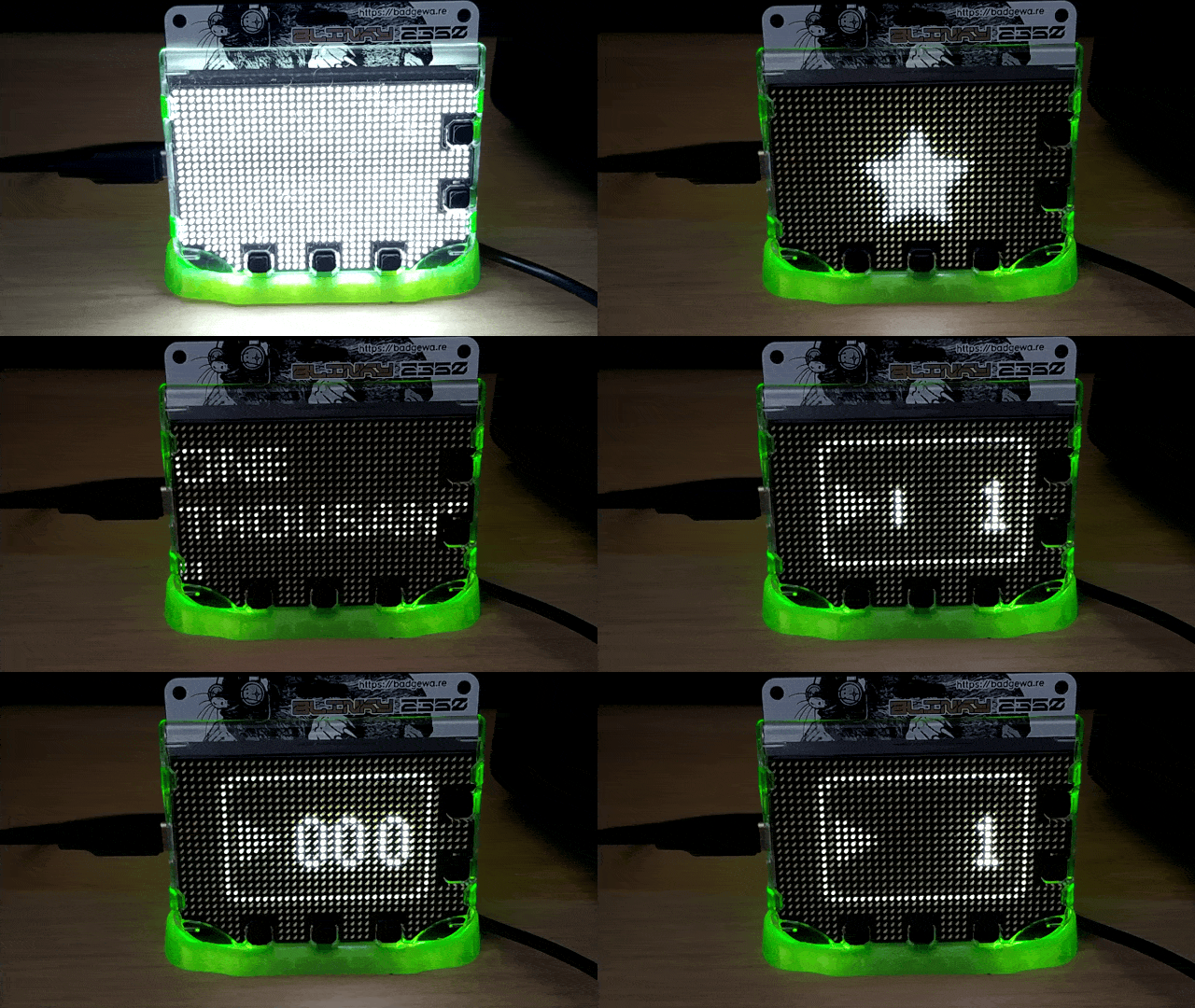
for i in range(50): screen.pen = color.white screen.text("ONE THOUSAND !!", rect(0, 0, 40, 40),8) badge.update()Add a short delay, then set the pen colour to grey and repeat the same text, in the same position. This produces a flashing text effect, very similar to late 20th century movie theatre signage.
time.sleep(0.1) screen.pen = color.grey screen.text("ONE THOUSAND !!", rect(0, 0, 40, 40),8) badge.update() time.sleep(0.1)Outside of the for loop, set the pen colour to black and clear the screen. This resets the screen after flashing the text, ready for the subs counter to appear.
screen.pen = color.black screen.clear() badge.update()Create a conditional section for 100,000 subscribers. This has a similar buffer to
1,000but we increase the buffer to 1,000 subscribers. This time there is one central star, which grows until it fully encompasses the screen. ThenONE HUNDRED THOUSANDis printed to the screen using the same flashing text effect.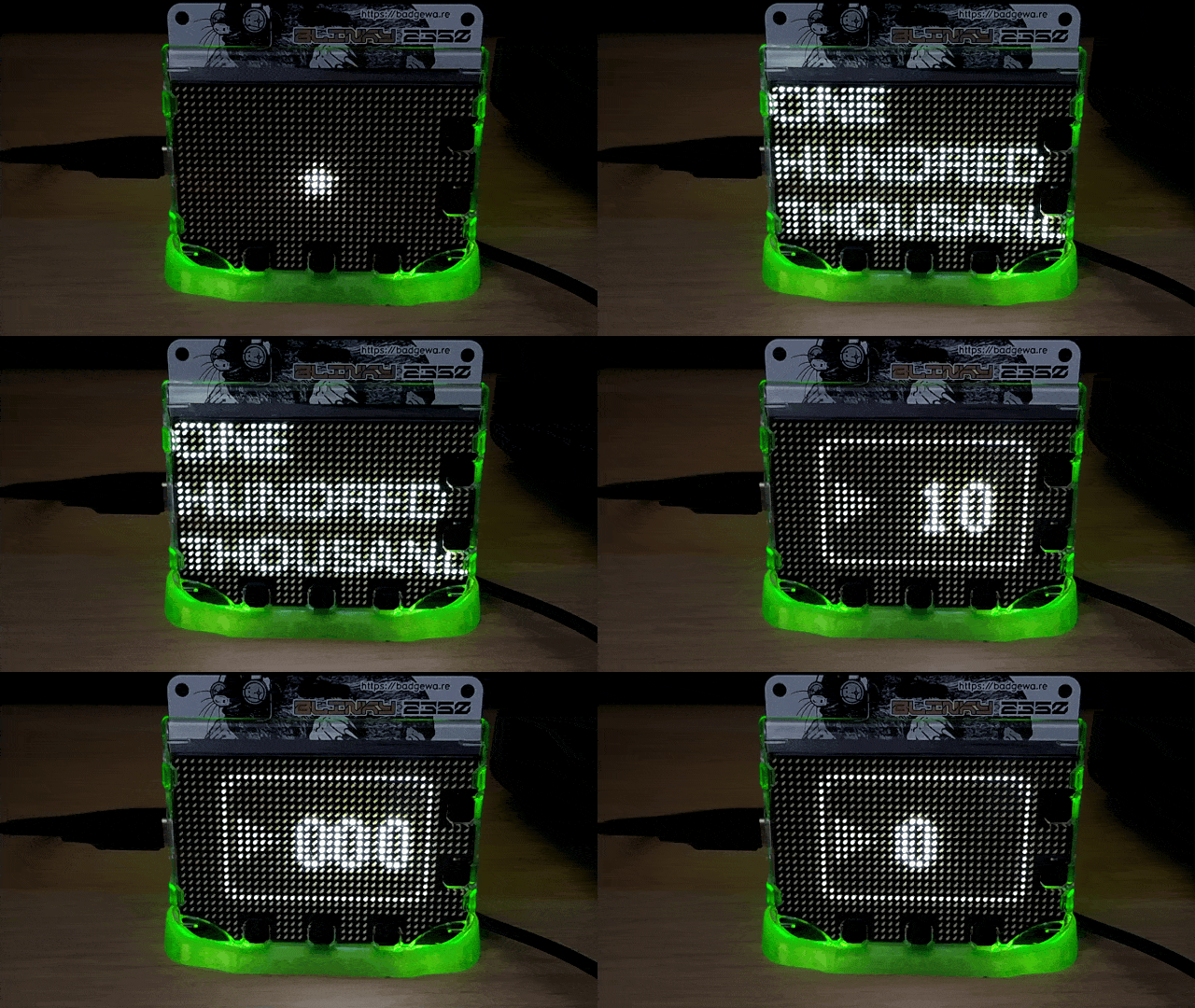
elif count >= 100_000 and count <= 101_000: for i in range(100): s = i star = shape.star(x, y, 5, s / 2, s) screen.shape(star) badge.update() time.sleep(0.01) screen.pen = color.black screen.clear() badge.update() for i in range(50): screen.pen = color.white screen.text("ONE HUNDRED THOUSAND", rect(0, -3, 40, 40),8) badge.update() time.sleep(0.1) screen.pen = color.grey screen.text("ONE HUNDRED THOUSAND", rect(0, -3, 40, 40),8) badge.update() time.sleep(0.1) screen.pen = color.black screen.clear() badge.update()This next section is an example of using a custom value to trigger an action. We've set this to our current number of subscribers, 890, and it simply reuses the flashing text effect. But this could be any value of your choosing. In the complete code listing below, this is commented out. To activate, remove the
#from the beginning of each line and tweak the trigger.elif count >= 890 and count <= 1234: #THIS IS A CUSTOM TARGET FOR YOUR CHANNEL, UNCOMMENT AND CHANGE ACCORDINGLY for i in range(50): screen.pen = color.white screen.text("CUSTOM TRIGGER", rect(0, -3, 40, 40),8) badge.update() time.sleep(0.1) screen.pen = color.grey screen.text("CUSTOM TRIGGER", rect(0, -3, 40, 40),8) badge.update() time.sleep(0.1) screen.pen = color.black screen.clear() badge.update()Add a section for one million subscribers. This will draw stars at random positions on the screen, before displaying flashing text. Again we have added a buffer, this time 1,000 subscribers, so that the event is not missed.
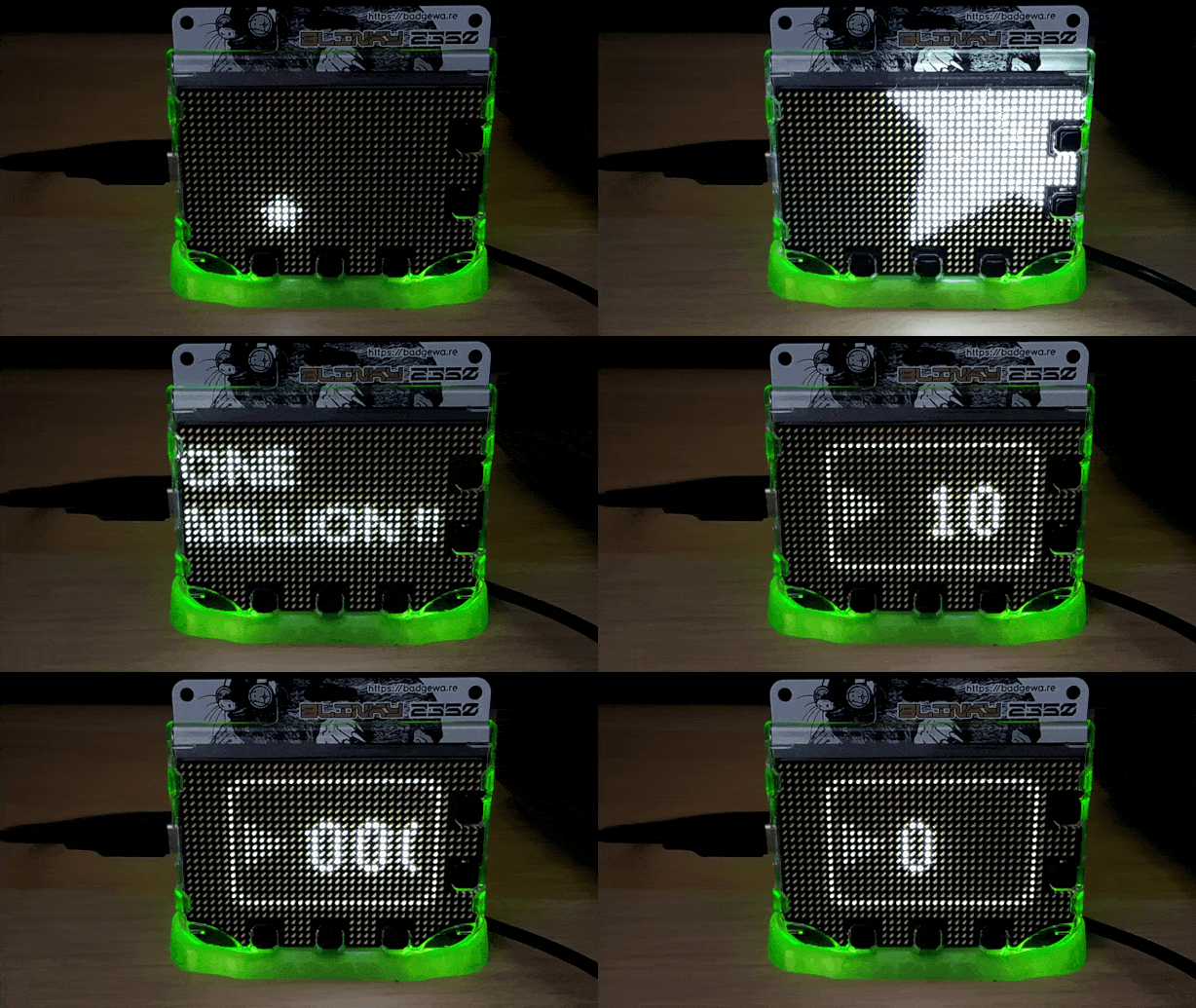
elif count >= 1_000_000 and count <= 1_001_000: screen.pen = color.white for i in range(50): screenx = random.randint(0, screen.width) screeny = random.randint(0, screen.height) s = i star = shape.star(screenx, screeny, 5, s / 2, s) screen.shape(star) badge.update() time.sleep(0.1) screen.pen = color.black screen.clear() badge.update() for i in range(100): screen.pen = color.white screen.text("ONE MILLION !!", rect(0, 0, 40, 40),8) badge.update() time.sleep(0.1) screen.pen = color.grey screen.text("ONE MILLION !!", rect(0, 0, 40, 40),8) badge.update() time.sleep(0.1) screen.pen = color.black screen.clear() badge.update()Create a function,
draw_framewhich handles drawing elements to the display and calls the code to runscroll(). Draw frame can clear the screen to black, draw a grey outer rounded rectangle which when used with a smaller, black rounded rectangle, and a triangle rotated 30 degrees, can be used to make a facsimile of the YouTube logo using no PNG images.def draw_frame(): screen.pen = color.black badge.clear() screen.pen = color.grey outer = shape.rounded_rectangle(6, 2, 28, 18, 2) screen.shape(outer) screen.pen = color.black inner = shape.rounded_rectangle(7, 3, 26, 16, 2) screen.shape(inner) screen.pen = color.grey unit_triangle.transform = mat3().translate(10, 11).scale(4).rotate(30) screen.shape(unit_triangle) screen.pen = color.white if scroll: scroll()This function
get_youtube_statshandles extracting the subscriber stats from what the YouTube API returns and updates thesubscribersvariable. The function also handles if there is an error in the returned data. You'll notice that there is a hard coded value for subscribers which has been commented out. Python will ignore this, but if we need to test an animation ahead of hitting the milestone, we can hard code the value and test. Just remember to comment#the code to deactivate and trigger using the returned API value.def get_youtube_stats(data): global last_subscribers try: stats = data["items"][0]["statistics"] subscribers = int(stats["subscriberCount"]) #HARD CODE SUBSCRIBER NUMBER FOR TESTING!!! #subscribers = 1000000 if subscribers != last_subscribers: setup_scroller_and_animations(subscribers) last_subscribers = subscribers except (KeyError, IndexError): print("Unexpected response:", data)This
while Trueloop will check the status of the fetched data, and calls thedraw_framefunction to write the data to the display.while True: if status: get_youtube_stats(status.json()) draw_frame() badge.update()Save the code and press RESET on Blinky to restart in badge mode.
Scroll to the app, you should see the YouTube logo bounce on the screen.
Press B to start the app. The case lights will flash and the triangle progress indicator will spin until a solid Wi-Fi connection is made. Once connected, an API call is made and after a few seconds we will see either an animation or our current subscriber details on Blinky's display.
Your YouTube subscriber badge is now complete and you can now wear it proudly in a video or hide it on the set for eagle-eyed viewers to find.
Complete Code Listing: Advanced Subscriber Goals
import wifi
import secrets
import time
import fetch
import random
screen.antialias = X4
mona = font.load("/system/assets/fonts/MonaSans-Medium.af")
screen.font = mona
unit_triangle = shape.regular_polygon(0, 0, 1, 3)
wifi.disconnect()
while not wifi.connect():
    for i in range(12):
        unit_triangle.transform = mat3().translate(screen.width//2, screen.height//2).scale(4).rotate(i*30)
        badge.caselights(1)
        time.sleep(0.1)
        screen.shape(unit_triangle)
        badge.update()
        badge.caselights(0)
        time.sleep(0.1)
print("Connected! IP address:", wifi.ip())
badge.caselights(1)
API_URL = (
    "https://www.googleapis.com/youtube/v3/channels"
    "?part=statistics&id={0}&key={1}"
).format(secrets.CHANNEL_ID, secrets.API_KEY)
status = fetch.url(API_URL, every=3600)
last_subscribers = None
subscriber_window = screen.window(16, 6, 15, 10)
scroll = None
def setup_scroller_and_animations(count):
    global scroll
    value = str(count)
    scroll = text.scroll(value, gap=10, speed=15, target=subscriber_window)
    x = screen.width//2
    y = screen.height//2
    screen.font = mona
if count >= 1_000 and count <= 1500:
for i in range(100,0,-1):
s = i
star = shape.star(x, y, 5, s / 2, s)
            screen.shape(star)
            badge.update()
            time.sleep(0.01)
            screen.pen = color.black
            screen.clear()
            badge.update()
        for i in range(50):
            screen.pen = color.white
            screen.text("ONE THOUSAND !!", rect(0, 0, 40, 40),8)
            badge.update()
            time.sleep(0.1)
            screen.pen = color.grey
            screen.text("ONE THOUSAND !!", rect(0, 0, 40, 40),8)
            badge.update()
            time.sleep(0.1)
        screen.pen = color.black
        screen.clear()
        badge.update()
    elif count >= 100_000 and count <= 101_000:
        for i in range(100):
            s = i
            star = shape.star(x, y, 5, s / 2, s)
            screen.shape(star)
            badge.update()
            time.sleep(0.01)
            screen.pen = color.black
            screen.clear()
            badge.update()
        for i in range(50):
            screen.pen = color.white
            screen.text("ONE HUNDRED THOUSAND", rect(0, -3, 40, 40),8)
            badge.update()
            time.sleep(0.1)
            screen.pen = color.grey
            screen.text("ONE HUNDRED THOUSAND", rect(0, -3, 40, 40),8)
            badge.update()
            time.sleep(0.1)
        screen.pen = color.black
        screen.clear()
        badge.update()
#elif count >= 890 and count <= 1234: #THIS IS A CUSTOM TARGET FOR YOUR CHANNEL, UNCOMMENT AND CHANGE ACCORDINGLY
# for i in range(50):
# screen.pen = color.white
# screen.text("CUSTOM TRIGGER", rect(0, -3, 40, 40),8)
# badge.update()
# time.sleep(0.1)
# screen.pen = color.grey
# screen.text("CUSTOM TRIGGER", rect(0, -3, 40, 40),8)
# badge.update()
# time.sleep(0.1)
# screen.pen = color.black
# screen.clear()
# badge.update()
    elif count >= 1_000_000 and count <= 1_001_000:
        screen.pen = color.white
        for i in range(50):
            screenx = random.randint(0, screen.width)
            screeny = random.randint(0, screen.height)
            s = i
            star = shape.star(screenx, screeny, 5, s / 2, s)
            screen.shape(star)
            badge.update()
            time.sleep(0.1)
        screen.pen = color.black
        screen.clear()
        badge.update()
        for i in range(100):
            screen.pen = color.white
            screen.text("ONE MILLION !!", rect(0, 0, 40, 40),8)
            badge.update()
            time.sleep(0.1)
            screen.pen = color.grey
            screen.text("ONE MILLION !!", rect(0, 0, 40, 40),8)
            badge.update()
            time.sleep(0.1)
        screen.pen = color.black
        screen.clear()
        badge.update()
def draw_frame():
    screen.pen = color.black
    badge.clear()

    screen.pen = color.grey
    outer = shape.rounded_rectangle(6, 2, 28, 18, 2)
    screen.shape(outer)

    screen.pen = color.black
    inner = shape.rounded_rectangle(7, 3, 26, 16, 2)
    screen.shape(inner)

    screen.pen = color.grey
    unit_triangle.transform = mat3().translate(10, 11).scale(4).rotate(30)
    screen.shape(unit_triangle)

    screen.pen = color.white
    if scroll:
        scroll()
def get_youtube_stats(data):
    global last_subscribers
    try:
        stats = data["items"][0]["statistics"]
        subscribers = int(stats["subscriberCount"])
        #HARD CODE SUBSCRIBER NUMBER FOR TESTING!!!
        #subscribers = 1000000
        if subscribers != last_subscribers:
            setup_scroller_and_animations(subscribers)
            last_subscribers = subscribers
    except (KeyError, IndexError):
        print("Unexpected response:", data)
while True:
    if status:
        get_youtube_stats(status.json())
    draw_frame()
    badge.update()
What Have We Learnt?
- How to draw vector images on Badgeware, using shapes and polygons instead of PNGs.
- How to transform vector shapes with
mat3, to translate, scale, and rotate them for animations. - How to use
screen.windowand scrolling text to display long or changing values. - How to use different fonts on Badgeware.
- How to create animations with Badgeware.