 Intermediate
Remote Controlled LEDs with Badgeware and MQTT
Learn how Tufty 2350 can be used to control another device over Wi-Fi using the MQTT protocol.
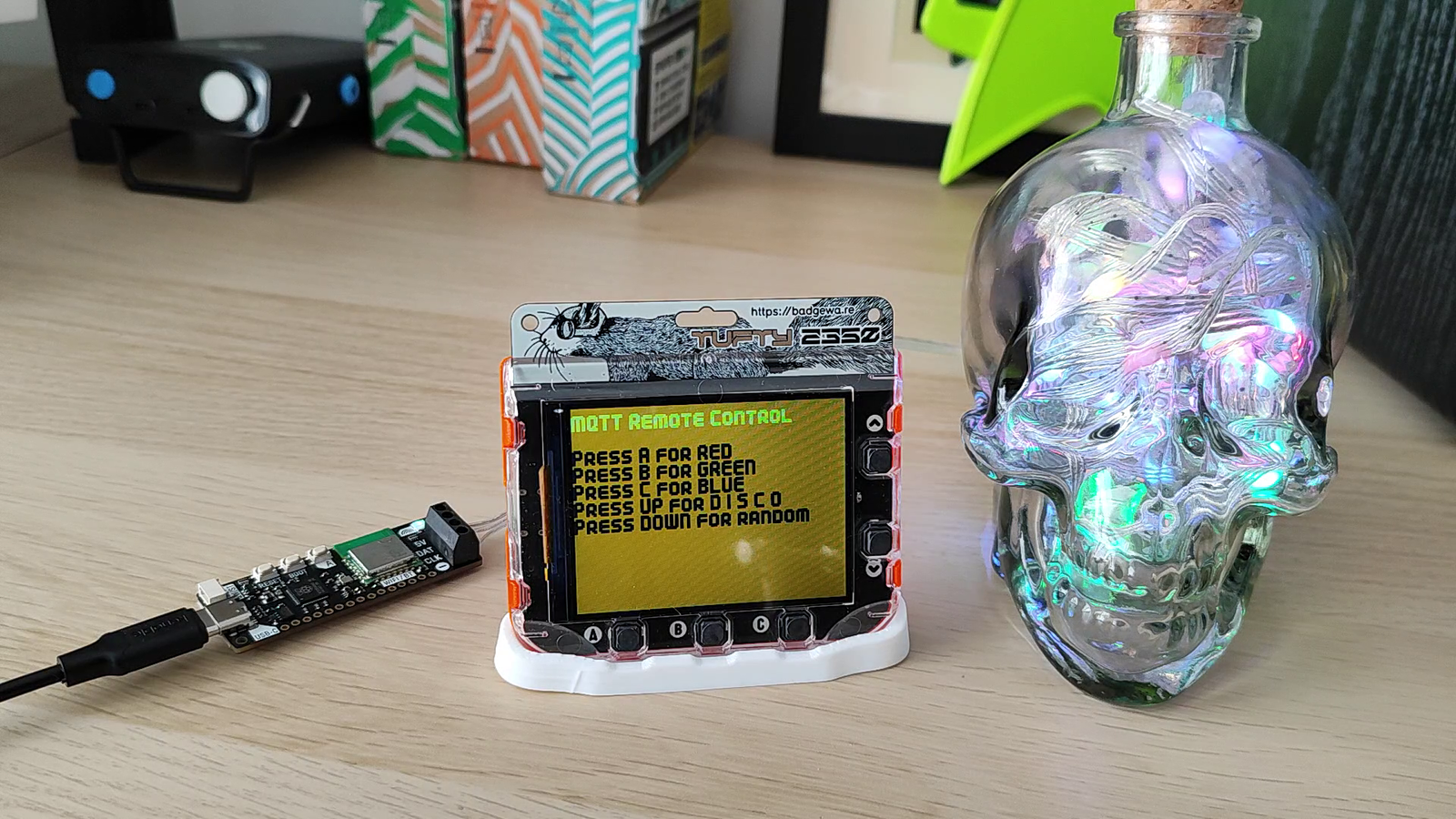
In this tutorial we will use Tufty 2350 as a wireless remote control for a different device - a Plasma 2350 W with 50 RGB LEDs attached to it. The goal of the project is to push a button on Tufty 2350 and change the colour of the LEDs using the ✨power of MQTT✨.
We can control Plasma 2350 W's LEDs in a few different ways:
- Remote control via Infrared.
- Input from sensors or user input.
- Remote control over a network connection.
We've covered using the Infrared Receiver Stick and Remote in our Tiny FX W tutorial (which can be easily ported to run on Plasma 2350 W) but network control is the focus of this project.
We're going to build a remote controlled chain of RGB LEDs using two devices. Tufty 2350, one of our new Badgeware devices and a Plasma 2350 W connected to a string of 50 addressable RGB LEDs, commonly called "NeoPixels". Because both boards have Wi-Fi capability, they can communicate with each other over a network connection.
So, how exactly do the two devices talk to one another? For that we need to learn about the magic of MQTT.
What is MQTT?
Message Query Telemetry Transport (MQTT) is a lightweight messaging protocol for resource constrained devices including microcontrollers. Created in 1999 by Andy-Stanford-Clark and Arlen Nipper, MQTT was originally designed to send data from remote locations, over less than reliable networks. Over the years, it has been used in popular projects such as Facebook Messenger, but it is the Internet of Things (IoT) where MQTT has made its mark.
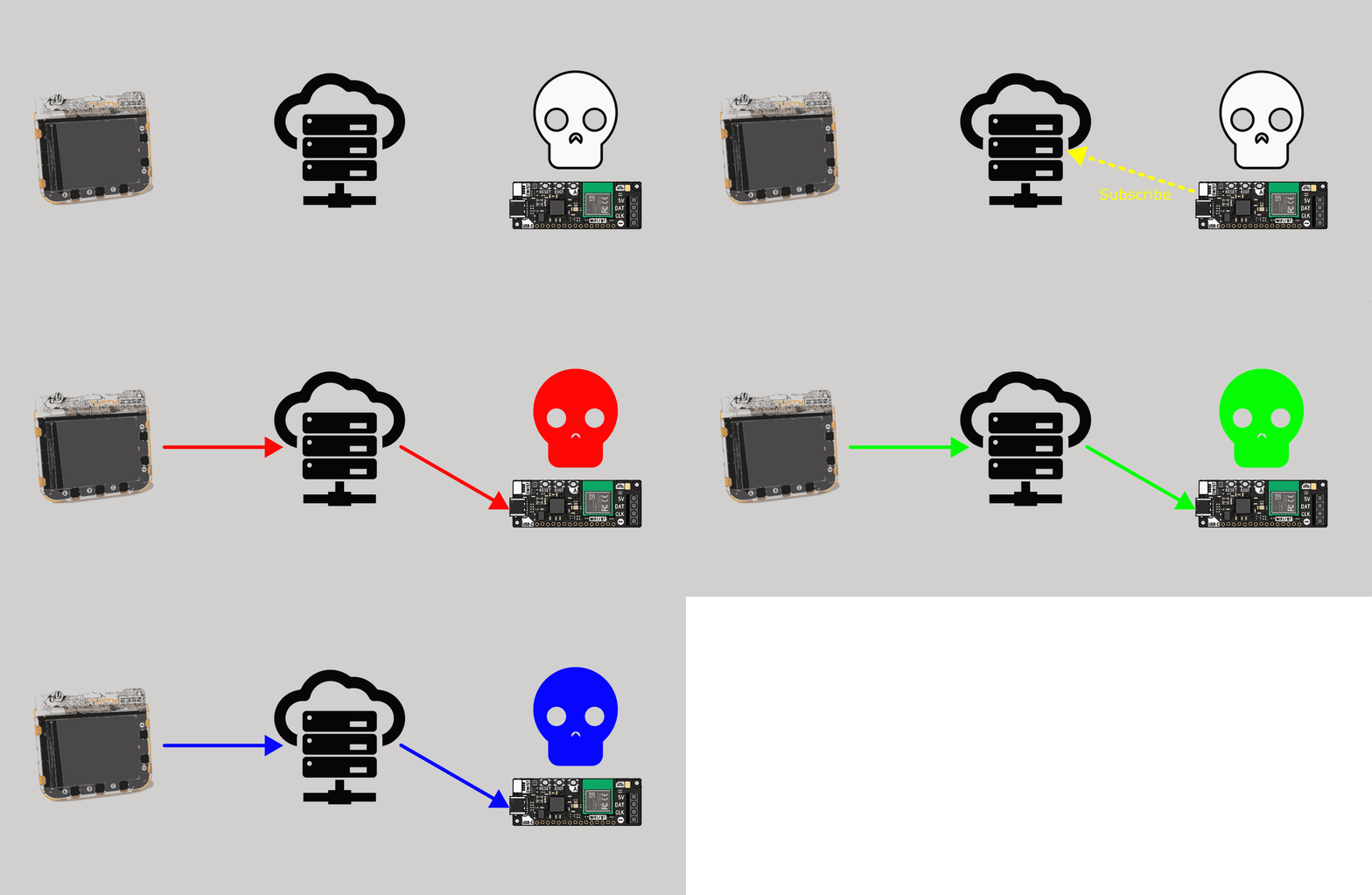
In principle, MQTT works in a similar way to YouTube. There are publishers, subscribers and a broker.
- Publishers are content creators. In MQTT a publisher will send messages using a topic to identify its purpose. In this project we use "pirate remote" to identify the project on a public MQTT network.
- Broker is YouTube's platform. Content creators publish their content to YouTube, and subscribers subscribe to consume the content. In MQTT, a broker handles passing the messages between the Publishers and the Subscribers.
- Subscribers are YouTube viewers. MQTT subscribers have told the broker (subscribed) that they want to receive messages on a certain topic and the broker will route their messages to them.
In this project, Tufty 2350 is the publisher, HiveMQ is the public MQTT broker, and Plasma 2350 W is the subscriber. Plasma 2350 W subscribes to the MQTT topic, and when we press a button on Tufty 2350, it publishes a message to the broker which routes the message to Plasma 2350 W and that changes the colour of the RGB LEDs according to which button is pressed.
What you'll need
- Wireless Plasma Kit - we're using Skully.
- Tufty 2350. This project can also be modified to run on Badger 2350 and Blinky 2350.
- A computer running Thonny. We assume that you are already familiar with Thonny.
❗️ This guide assumes you're using v3 (or later) firmware on your badge. Before starting this project, please ensure you update your firmware to the latest version.
Creating the Subscriber
Our subscriber is a Plasma 2350 W with 50 RGB LEDs packed into the delightfully spooky Skully bottle. The subscriber will receive messages over MQTT and we use the message text to trigger a colour change. We're going to setup our subscriber before the publisher, so that we can quickly test sending messages between the two.
- Connect Plasma 2350 W to your computer and open Thonny. Thonny should automatically connect to Plasma 2350 W, if not go to Tools >> Options and click on the Interpreter tab. Configure Thonny for MicroPython and select the correct port.
- On your Plasma 2350 W, open secrets.py and configure the SSID and password to match your network.
- Click on Save and then close secrets.py.
- Copy the contents of this file and paste into a blank file.
- Save the file as simple.py to the root (/) of your Plasma 2350 W. Close the file in Thonny.
- Open main.py and delete the contents.
- Import a series of modules.
- network: Wi-Fi networking functionality.
- time: Control the pace / pause the code.
- umqtt.simple: To use the MQTT protocol.
- secrets: Our Wi-Fi SSID and password.
- plasma: Plasma 2350 W's module to control RGB LEDs.
- random: Module for pseudo-random functions, we use it for random number generation.
import network
import time
from umqtt.simple import MQTTClient
import secrets
import plasma
from random import randint
- Create a variable, NUM_LEDS and use it to store the number of LEDs in the chain.
NUM_LEDS = 50
- Create an object, led_strip and configure it to control the LEDs. Note that color_order has been used as we have Green, Red, Blue LEDs, not Red, Green, Blue.
led_strip = plasma.WS2812(
    NUM_LEDS, color_order=plasma.COLOR_ORDER_RGB
)
- Create three variables to set the MQTT broker URL, port, and the ID of of our subscriber. The broker can be a URL or an IP address. We are using the public MQTT broker from HiveMQ but this could be a private MQTT broker on your home network. MQTT uses port 1883 by default. The Client ID is used to identify the device.
MQTT_BROKER = "broker.hivemq.com"
MQTT_PORT = 1883
CLIENT_ID = b"pirate_listener"
- Set the MQTT topic to "pirate_remote". This is the topic that the publisher will be using to send messages, so our subscriber needs to use the same topic in order to see the messages.
TOPIC = b"pirate_remote"
- **Create a function to connect Plasma 2350 W to your Wi-Fi, then create an object to handle talking to the Wi-Fi chip and then turn on the Wi-Fi connection.
def connect_wifi():
    wlan = network.WLAN(network.STA_IF)
    wlan.active(True)
- Create a conditional statement to connect Tufty 2350 to Wi-Fi using the SSID and password stored in secrets.py. If the Wi-Fi fails to connect, the code will retry every half second.
    if not wlan.isconnected():
        wlan.connect(secrets.WIFI_SSID, secrets.WIFI_PASSWORD)
        while not wlan.isconnected():
            time.sleep(0.5)
- Create a function to handle receiving messages via MQTT. The function takes two arguments, the topic and the contents of the received message. The topic and the message are printed to the Python Shell for debug purposes.
def mqtt_callback(topic, msg):
    print("Received on", topic.decode(), ":", msg.decode())
- Using a conditional statement, check the contents of the returned message. If it contains "red" set all of the LEDs to red. Note that we are setting them to half-brightness (127) but this can be changed to 255 for full brightness.
    if msg == b"red":
        for i in range(NUM_LEDS):
            led_strip.set_rgb(i, 127, 0, 0)
- Repeat the process for "green" and "blue" messages.
    elif msg == b"green":
        for i in range(NUM_LEDS):
            led_strip.set_rgb(i, 0, 127, 0)
    elif msg == b"blue":
        for i in range(NUM_LEDS):
            led_strip.set_rgb(i, 0, 0, 127)
- Create a condition for a "disco" message. This will will use a for loop set to iterate 10 times. Each time it sets a random individual LED (x) to a random colour using a random integer for r,g,b. Essentially this will turn the LEDs into a big ball of disco lights.
    elif msg == b"disco":
        for _ in range(10):
            for i in range(NUM_LEDS):
                x = randint(0,49)
                r = randint(0,127)
                g = randint(0,127)
                b = randint(0,127)
                led_strip.set_rgb(i, r,g,b)
                time.sleep(0.01)
- Create a final condition to set all of the LEDs to one random colour.
    elif msg == b"randomc":
        r = randint(0,127)
        g = randint(0,127)
        b = randint(0,127)
        for i in range(NUM_LEDS):
            led_strip.set_rgb(i, r,g,b)
- Create a function called main() and use it to call the connect_wifi() function.
def main():
    connect_wifi()
- Set up the connection to the MQTT broker. We use the values stored in the variables that we created earlier.
    client = MQTTClient(
        client_id=CLIENT_ID,
        server=MQTT_BROKER,
        port=MQTT_PORT
    )
- Set the MQTT callback (when the subscriber receives a message) to action the mqtt_callback function which handles controlling the LEDs based on the message we receive.
client.set_callback(mqtt_callback)
- Connect to the MQTT broker.
    print("Connecting to MQTT...")
    client.connect()
- Subscribe to the MQTT topic.
    print("Subscribing to:", TOPIC.decode())
    client.subscribe(TOPIC)
- Start the connection to the RGB LED strip connected to Plasma 2350 W. This resets the LEDs ready to be used.
led_strip.start()
- Inside a try block, use a loop to wait for an MQTT message.
    try:
        while True:
            client.wait_msg()
- Add a finally block to handle disconnecting from MQTT should we need to.
    finally:
        client.disconnect()
- Call the main() function.
main()
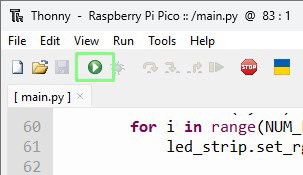
- Save the code as main.py and click Run.
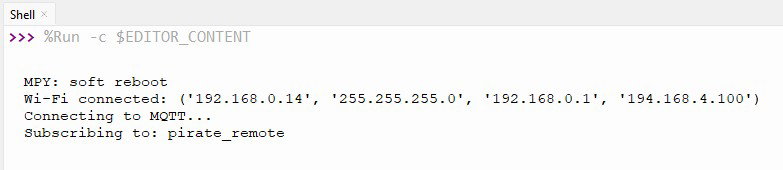
- You should see that Plasma 2350 W is connected and subscribed to the topic.
With the MQTT subscriber connected to the broker and waiting for a message we now move our attention to the publisher which is based around Tufty 2350.
Complete Code Listing: Subscriber
import network
import time
from umqtt.simple import MQTTClient
import secrets
import plasma
from random import randint

NUM_LEDS = 50
led_strip = plasma.WS2812(
    NUM_LEDS, color_order=plasma.COLOR_ORDER_RGB
)

# MQTT settings
MQTT_BROKER = "broker.hivemq.com"
MQTT_PORT = 1883
CLIENT_ID = b"pirate_listener"

TOPIC = b"pirate_remote"


def connect_wifi():
    wlan = network.WLAN(network.STA_IF)
    wlan.active(True)

    if not wlan.isconnected():
        print("Connecting to Wi-Fi...")
        wlan.connect(secrets.WIFI_SSID, secrets.WIFI_PASSWORD)

        while not wlan.isconnected():
            time.sleep(0.5)

    print("Wi-Fi connected:", wlan.ifconfig())


def mqtt_callback(topic, msg):
    print("Received on", topic.decode(), ":", msg.decode())

    # Example command handling
    if msg == b"red":
        for i in range(NUM_LEDS):
            led_strip.set_rgb(i, 127, 0, 0)
    elif msg == b"green":
        for i in range(NUM_LEDS):
            led_strip.set_rgb(i, 0, 127, 0)
    elif msg == b"blue":
        for i in range(NUM_LEDS):
            led_strip.set_rgb(i, 0, 0, 127)
    elif msg == b"disco":
        for _ in range(10):
            for i in range(NUM_LEDS):
                x = randint(0,49)
                r = randint(0,127)
                g = randint(0,127)
                b = randint(0,127)
                led_strip.set_rgb(i, r,g,b)
                time.sleep(0.01)
    elif msg == b"randomc":
        r = randint(0,127)
        g = randint(0,127)
        b = randint(0,127)
        for i in range(NUM_LEDS):
            led_strip.set_rgb(i, r,g,b)

def main():
    connect_wifi()

    client = MQTTClient(
        client_id=CLIENT_ID,
        server=MQTT_BROKER,
        port=MQTT_PORT
    )

    client.set_callback(mqtt_callback)

    print("Connecting to MQTT...")
    client.connect()

    print("Subscribing to:", TOPIC.decode())
    client.subscribe(TOPIC)

    led_strip.start()
    try:
        while True:
            client.wait_msg()
    finally:
        client.disconnect()
main()
Creating the Publisher
The Publisher's job is to send messages over the MQTT network, and in our case we will be using the buttons around Tufty 2350's screen to send custom messages. Tufty 2350's screen will also change colour to reflect the current choice.
- Connect your Tufty 2350 to your computer using a known good USB cable.
- Double press Tufty 2350's Reset button to turn on in USB disk mode.
- Open your operating systems file manager and look for TUFTY.
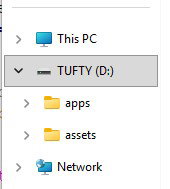
- Open TUFTY drive and open secrets.py and configure the SSID and password to match your network. Save the file before moving on.
- Open the apps folder and create a new folder called "MQTT_Remote"
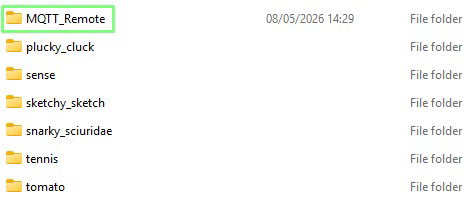
- Open the MQTT_Remote folder and inside create a folder called "assets". We actually won't be using this folder, but it is good practice to create one should we want to introduce images to our apps.
- Inside the MQTT_Remote folder, add a 24 x 24 pixel PNG icon to represent your application. The file should be called icon.png
- Inside the MQTT_Remote folder, create a blank Python file and name it init.py then open it in a text editor.
- Import a series of modules.
- network: Wi-Fi networking functionality.
- time: Control the pace / pause the code.
- umqtt.simple: To use the MQTT protocol. (This is pre-installed on Badgeware devices)
- secrets: Our Wi-Fi SSID and password.
import network
import time
from umqtt.simple import MQTTClient
import secrets
- Create three variables to set the MQTT broker URL, port, and the ID of of our subscriber. The broker can be a URL or an IP address. We are using the public MQTT broker from HiveMQ but this could be a private MQTT broker on your home network. MQTT uses port 1883 by default.
MQTT_BROKER = "broker.hivemq.com"
MQTT_PORT = 1883
CLIENT_ID = b"pirate_remote_tx"
- Set the MQTT topic to "pirate_remote". This is the same topic that the subscriber uses, enabling the two devices to communicate.
TOPIC = b"pirate_remote"
- Create a variable, background and store one of the pre-determined Badgeware colour constants. We chose smoke as it offered a gentle grey hue.
background = color.smoke
- Create an object to handle talking to the Wi-Fi chip and then turn on that chip.
wlan = network.WLAN(network.STA_IF)
wlan.active(True)
- Create an if conditional statement to connect to Wi-Fi using the SSID and password stored in secrets.py. If the Wi-Fi fails to connect, the code will retry every half second. An optional print function will output the connection details when a successful connection is made.
    if not wlan.isconnected():
        print("Connecting to Wi-Fi...")
        wlan.connect(secrets.WIFI_SSID, secrets.WIFI_PASSWORD)
        while not wlan.isconnected():
            time.sleep(0.5)
    print("Wi-Fi connected:", wlan.ifconfig())
- Set up the MQTT broker connection.
    client = MQTTClient(
        client_id=CLIENT_ID,
        server=MQTT_BROKER,
        port=MQTT_PORT
    )
- Connect to the MQTT broker. The print statement is optional, useful for debugging issues.
    print("Connecting to MQTT...")
    client.connect()
- Create a function, update() which will be run each time Tufty 2350's screen updates.
def update():
- Set the background variable to be a global variable, this means that the variable can be used inside and out of the function.
global background
- Set the font to smart. This sets the font used to write text to Tufty's screen.
screen.font = font.smart
- Set the pen colour to use the colour stored in the background variable and then clear Tufty's screen. This will set the screen colour to the value stored in the background variable.
    screen.pen = background
    screen.clear()
- Set the pen colour to yellow and then write a line identifying the purpose of the app. The 0,0 refers to the X and Y position. In this case, 0,0 refers to the top left of the screen.
    screen.pen = color.yellow
    screen.text("MQTT Remote Control",0,0)
- Set the pen colour to black and then write five lines of instructions. Note that the Y value increase by 10 pixels for each line.
    screen.pen = color.black
    screen.text("Press A for RED",0,20)
    screen.text("Press B for GREEN",0,30)
    screen.text("Press C for BLUE",0,40)
    screen.text("Press UP for D I S C O",0,50)
    screen.text("Press DOWN for random",0,60)
- If the user presses Button A, publish an MQTT message "red" using the topic stored in the TOPIC variable. This will send a message to the subscriber (Plasma 2350 W) to set the LEDs to red.
    if badge.pressed(BUTTON_A):
        client.publish(
                    topic=TOPIC,
                    msg=b"red",
                    retain=False
                )
- Set the background colour to red, providing feedback to the user that a red message has been sent.
background = color.red
- Repeat this process for Button B (green) and Button C (blue). We are using cyan for blue as it looks more vibrant on the screen.
    elif badge.pressed(BUTTON_B):
        client.publish(
                    topic=TOPIC,
                    msg=b"green",
                    retain=False
                )
        background = color.lime
    elif badge.pressed(BUTTON_C):
        client.publish(
                    topic=TOPIC,
                    msg=b"blue",
                    retain=False
                )
        background = color.cyan
- For the Up button we will send "disco" as a message then set Tufty's screen background colour to orange. This corresponds with the disco section of code on Plasma 2350 W.
    elif badge.pressed(BUTTON_UP):
        client.publish(
                    topic=TOPIC,
                    msg=b"disco",
                    retain=False
                )
        background = color.orange
- For the Down button we send "randomc" which instructs Plasma 2350 W to pick a pseudo-random colour for the RGB LEDs. Then we set Tufty's screen background colour to a vibrant / hot pink.
    elif badge.pressed(BUTTON_DOWN):
        client.publish(
                    topic=TOPIC,
                    msg=b"randomc",
                    retain=False
                )
        background = color.rgb(254, 1, 154)
- Outside of the function, run the update function which will run every time the screen updates.
run(update)
- Save the code, close your text editor and then safely remove Tufty 2350 from your computer.
- Press Reset to power on Tufty 2350 and navigate to your app. Press Button B to run the app.
- Once the MQTT_Remote app has made a connection, press the corresponding key to send the message to Plasma 2350 W. You should see the RGB LEDs change colour. If not, reset Plasma 2350 W and then try again.
Complete Code Listing: Publisher
import network
import time
from umqtt.simple import MQTTClient
import secrets

MQTT_BROKER = "broker.hivemq.com"
MQTT_PORT = 1883
CLIENT_ID = b"pirate_remote_tx"
TOPIC = b"pirate_remote"
background = color.smoke
wlan = network.WLAN(network.STA_IF)
wlan.active(True)
if not wlan.isconnected():
    print("Connecting to Wi-Fi...")
    wlan.connect(secrets.WIFI_SSID, secrets.WIFI_PASSWORD)
    while not wlan.isconnected():
        time.sleep(0.5)
print("Wi-Fi connected:", wlan.ifconfig())
client = MQTTClient(
    client_id=CLIENT_ID,
    server=MQTT_BROKER,
    port=MQTT_PORT
)
print("Connecting to MQTT...")
client.connect()
def update():
    global background
    screen.font = font.smart
    screen.pen = background
    screen.clear()
    screen.pen = color.yellow
    screen.text("MQTT Remote Control",0,0)
    screen.pen = color.black
    screen.text("Press A for RED",0,20)
    screen.text("Press B for GREEN",0,30)
    screen.text("Press C for BLUE",0,40)
    screen.text("Press UP for D I S C O",0,50)
    screen.text("Press DOWN for random",0,60)
    if badge.pressed(BUTTON_A):
        client.publish(
            topic=TOPIC,
            msg=b"red",
            retain=False
            )
        background = color.red
    elif badge.pressed(BUTTON_B):
        client.publish(
           topic=TOPIC,
           msg=b"green",
           retain=False
           )
        background = color.lime
    elif badge.pressed(BUTTON_C):
        client.publish(
           topic=TOPIC,
           msg=b"blue",
           retain=False
           )
        background = color.cyan
    elif badge.pressed(BUTTON_UP):
        client.publish(
           topic=TOPIC,
           msg=b"disco",
           retain=False
           )
        background = color.orange
    elif badge.pressed(BUTTON_DOWN):
        client.publish(
           topic=TOPIC,
           msg=b"randomc",
           retain=False
           )
        background = color.rgb(254, 1, 154)

run(update)
Next Steps
You've done it! But what next? The publisher code can be adapted to run on other Badgeware devices, we have a section on how to tweak Badgeware code for other boards. The subscriber code could be adapted to run on Tiny FX W, enabling you to use MQTT to control your model dioramas, kits and bookshelf set pieces. If you've got a project to show us, drop us a message on our socials.