 Easy
Easy
Build a Custom Controller with SPOKE
Learn how to build and code your very own media controller.
SPOKE is a capacitive touch controller board that turns almost any conductive material into an input for your computer. With SPOKE you can create MIDI instruments, emulate mice, keyboards and perform advanced media functions. You can build your own custom Minecraft controller or build a novel Stream Deck controller for your streams.
SPOKE was created by Tom Fox for educators, makers, artists, musicians who want to add touch inputs to a project but don't want to get too far into the technicalities.
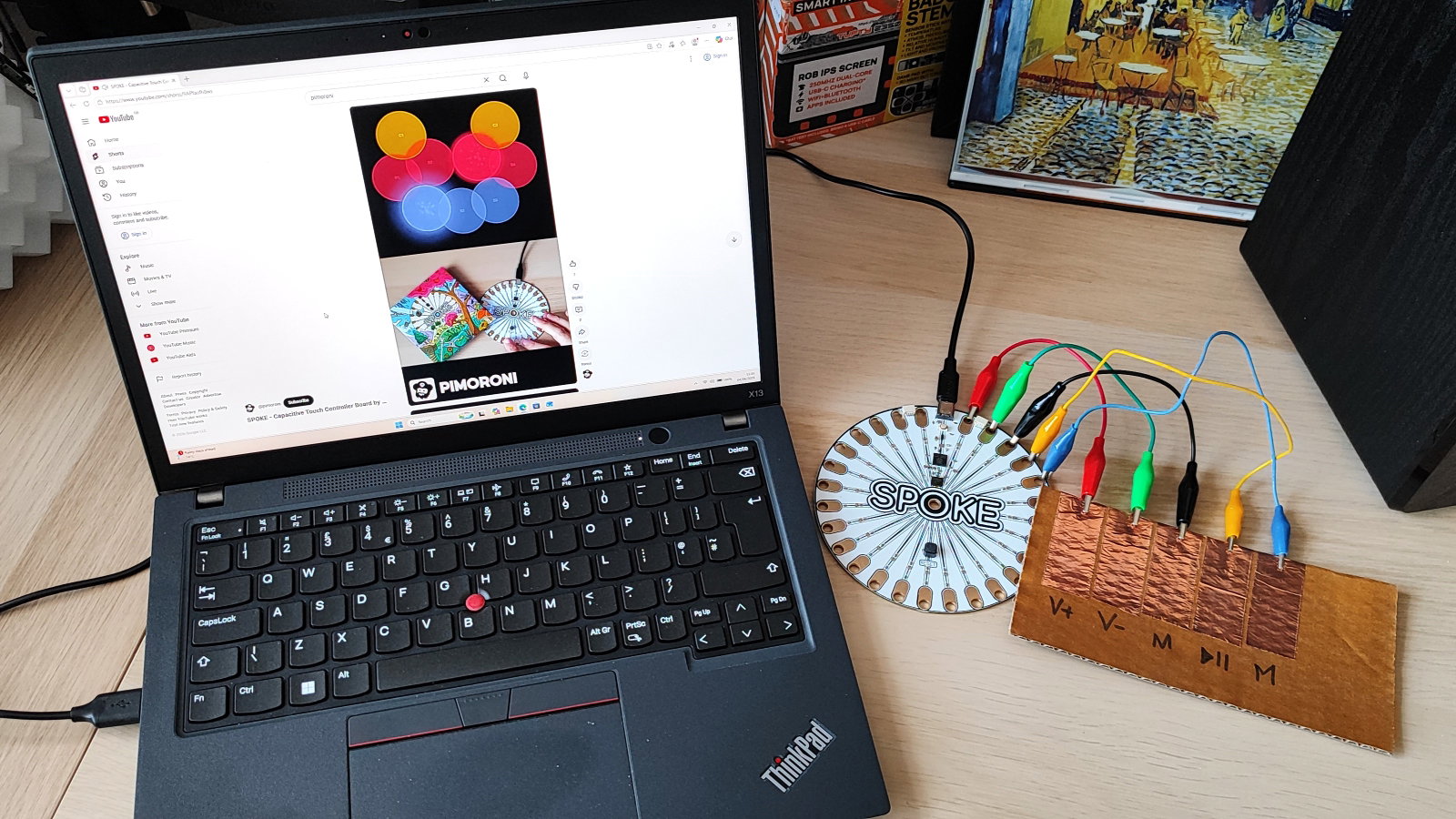
In this tutorial we will be learning how to use SPOKE as an advanced media playback controller for our computer. We'll code SPOKE to control the volume of our computer and to play/pause and stop media playback. Our controller will be a piece of cardboard, with copper tape and crocodile clips building a simple circuit.
What you'll need
- SPOKE board
- Crocodile clips
- USB-A to USB-C Cable
- Copper Tape
- Cardboard and general art supplies
Building the project
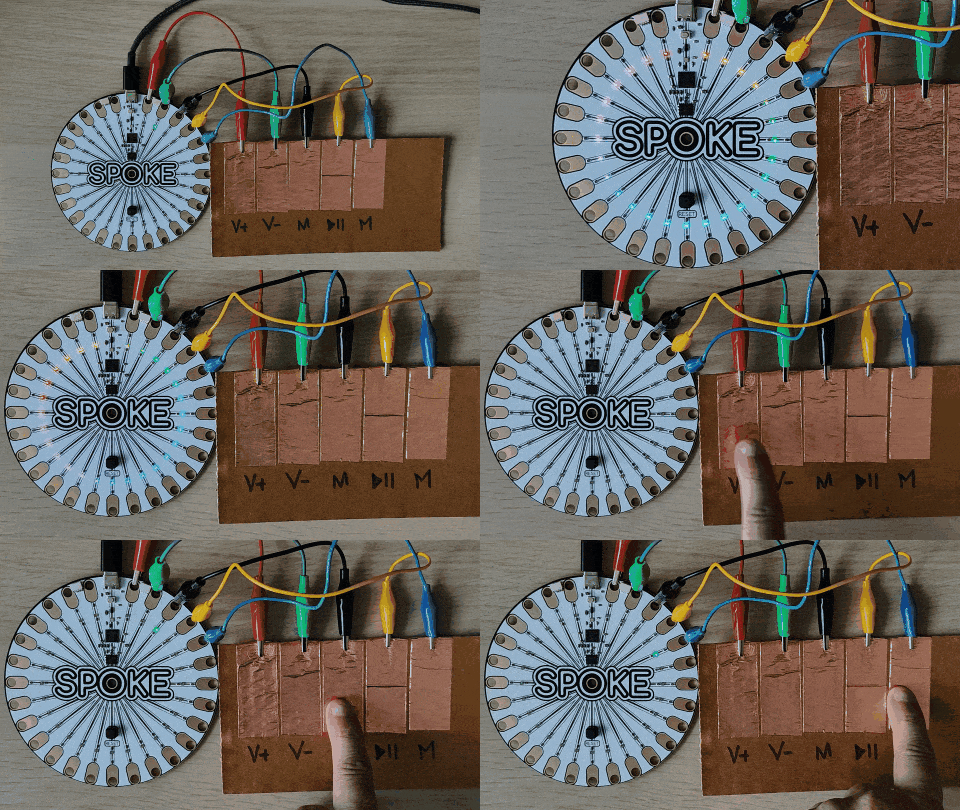
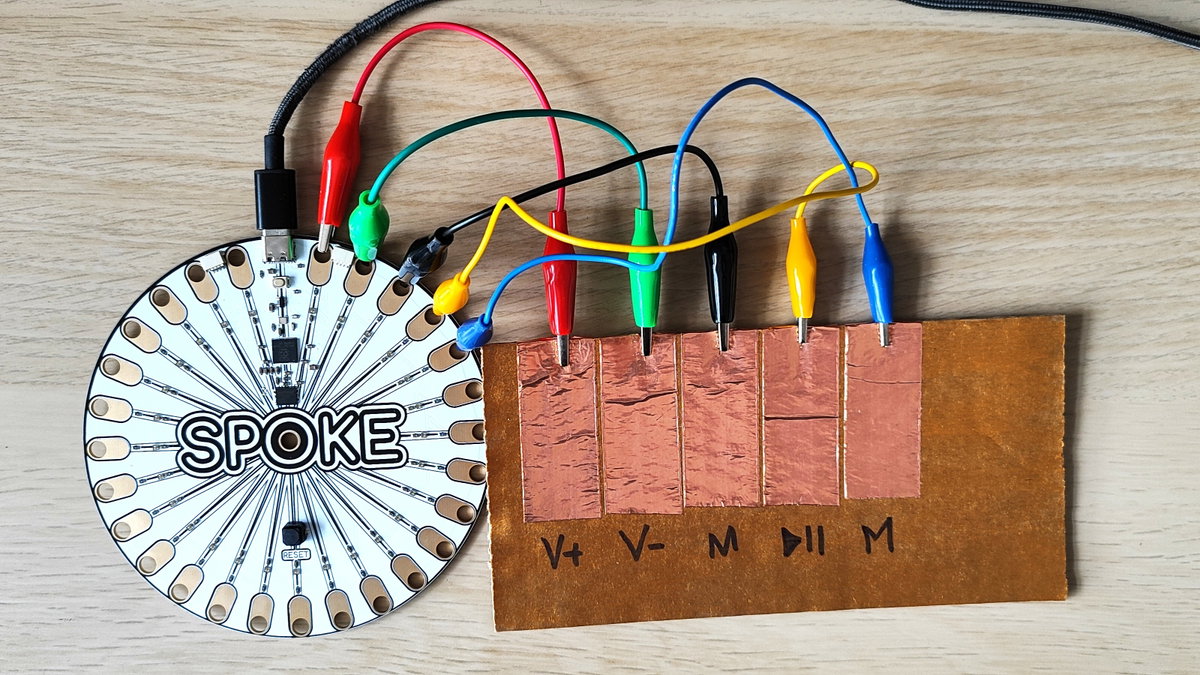 We've kept the build simple, just five crocodile clips, from inputs 1 to 5, connected to a length of cardboard which has copper tape stuck to it. The beauty of SPOKE is that anything that can conduct voltage, can be used as a touch input. From copper tape to bananas, even conductive inks, woven tapes and threads can be used to make wearable touch interfaces. Here is an image of our setup, adapt it and make it yours!
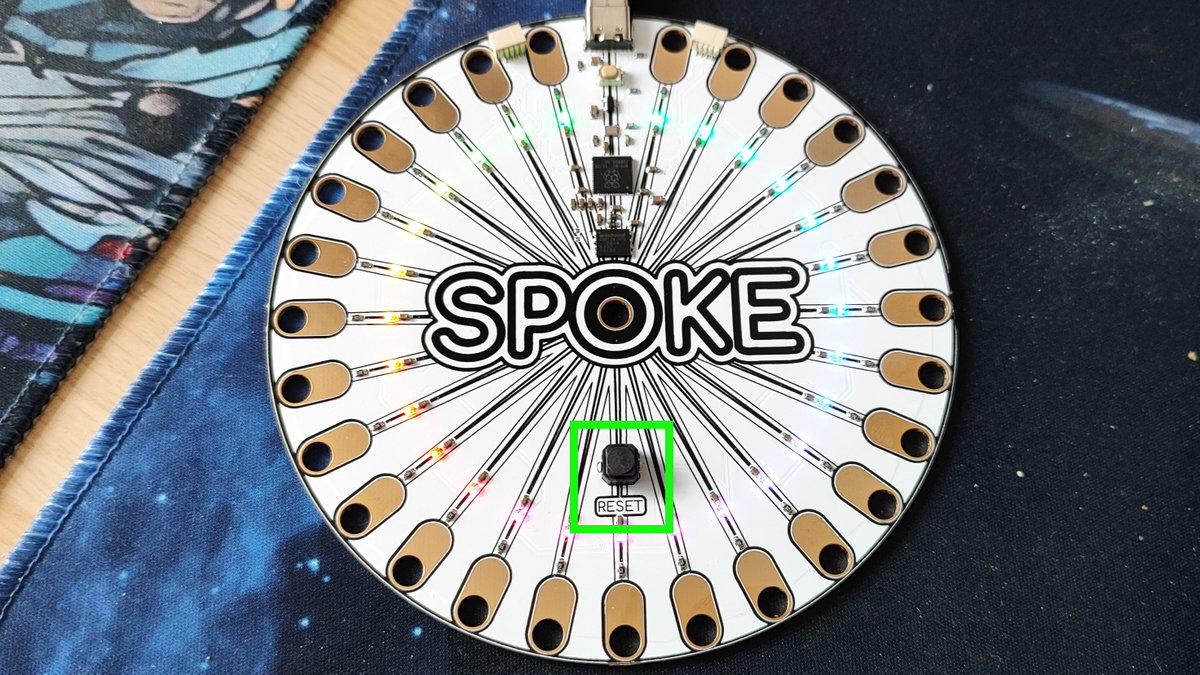 Remember, when adding / taking away a conductive object as an input, press reset so that SPOKE will recalibrate the input for accuracy. If you don't do that, your input may not work as expected.
Coding the project
SPOKE uses CircuitPython, Adafruit's own spin of Python for microcontrollers. It works a little differently to MicroPython.
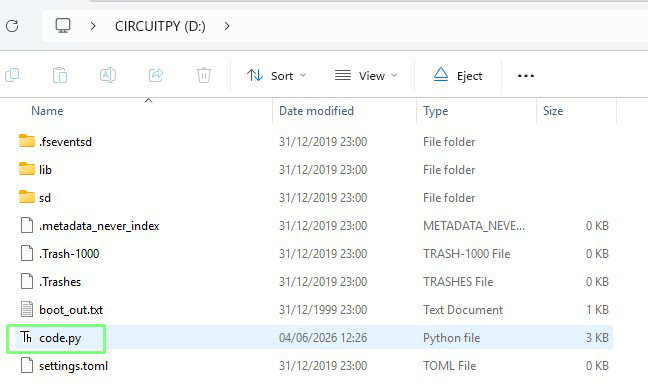 With CircuitPython a board presents itself to your operating system as a USB drive. The project code is written in a file called code.py which is in the root of the drive. We can open this file in any text editor, write the code and then click save. This will trigger any CircuitPython board to reset and reload code.py to start your project code. SPOKE works in this same manner, but we will be using the web based SPOKE code editor to write the project code.
- Before starting this project, follow the guidance here to confirm that your SPOKE board is connected. Spend some time getting to know SPOKE, try out the many examples and learn how SPOKE can be used in your projects.
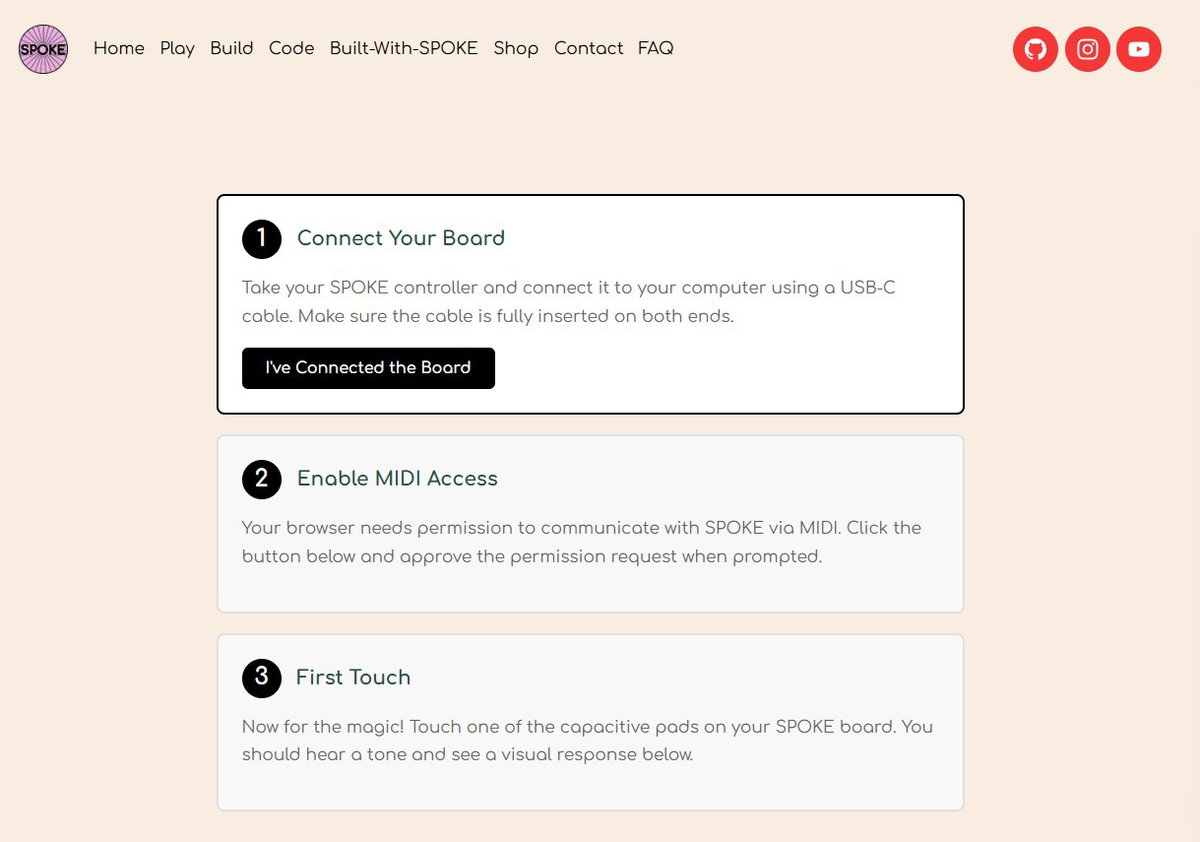
- Click on Code.

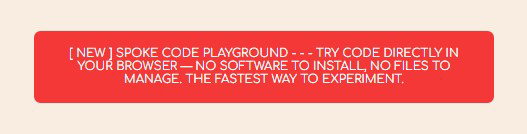
- Click on the red box to open the code editor.
- The code editor is broken down into five key areas.
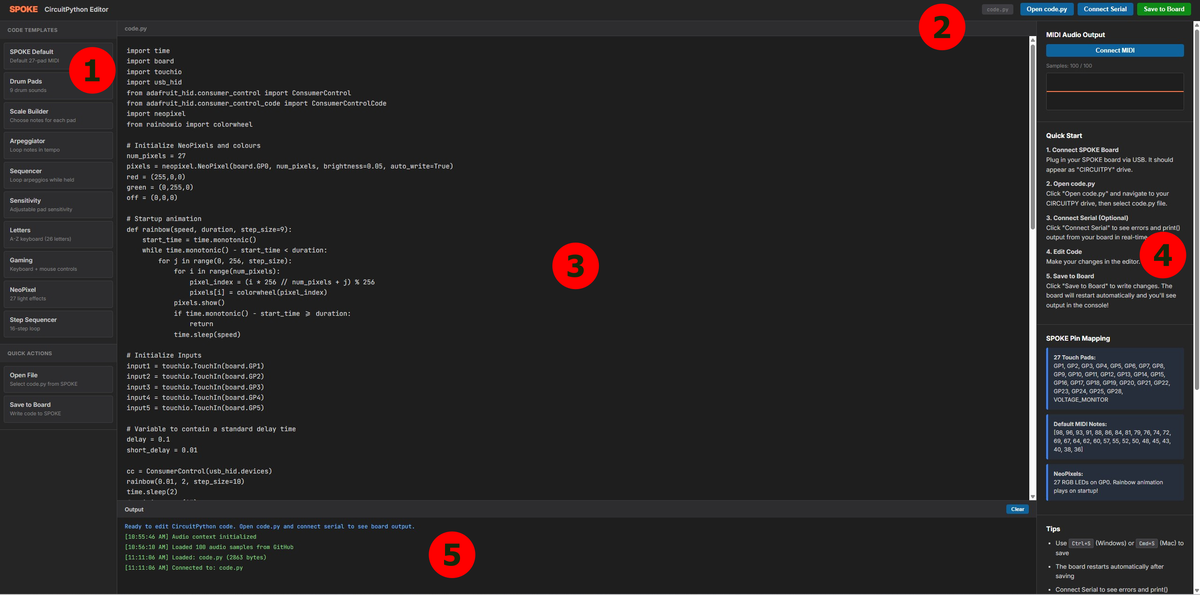
- Code Templates: Pre-written code examples covering how to use SPOKE in audio, gaming and general PC keyboard projects.
- File / Board Operations: Open the code.py on your SPOKE board, connect to the Python REPL via a serial console (5) and save your project to code.py.
- Coding Area: Here is where we write the CircuitPython code.
- Quick Start / Help Area: Need a quick tip, pinout, or common library name? You'll find it here.
- Output / Python REPL: This area provides information when saving code to SPOKE, and a Python REPL (Read, Eval, Print, Loop) that we can use to interact with SPOKE.
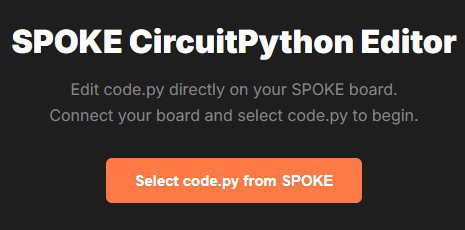
- Click on the button in the centre of the coding area (3) to open code.py on SPOKE.
- Import a series of modules.
- time: Used to add delays and control the speed at which the code runs.
- board: To use the GPIO pins.
- touchio: Enables GPIO pins to use capacitive touch.
- usb_hid: USB Human Interface Device, enables SPOKE to act as a USB peripheral.
- ConsumerControl: Advanced USB HID to act as a media or advanced keyboard.
- ConsumerControlCode: The codes that enable SPOKE to act as a multimedia controller.
- neopixel: To control the 27 WS2812 RGB LEDs
- rainbowio: Enables animations with the RGB LEDs.
import time import board import touchio import usb_hid from adafruit_hid.consumer_control import ConsumerControl from adafruit_hid.consumer_control_code import ConsumerControlCode import neopixel from rainbowio import colorwheel - Configure the NeoPixels so that all 27 can be used. SPOKE's onboard NeoPixels are connected to GP0, and we set their brightness to 0.05 so we can see them, but they do not hurt our eyes.
num_pixels = 27
pixels = neopixel.NeoPixel(board.GP0, num_pixels, brightness=0.05, auto_write=True)
- Use three tuples to store the RGB colour values for red, green and off. Tuples are data storage objects that are used to store multiple items in a single object. They are immutable, which means they cannot be updated.
red = (255,0,0)
green = (0,255,0)
off = (0,0,0)
- Create a function, rainbow, that takes three arguments - speed, duration and step_size. The function create a rainbow animation across all of the NeoPixel RGB LEDs. This function is present in all of the SPOKE example templates.
def rainbow(speed, duration, step_size=9):
    start_time = time.monotonic()
    while time.monotonic() - start_time < duration:
        for j in range(0, 256, step_size):
            for i in range(num_pixels):
                pixel_index = (i * 256 // num_pixels + j) % 256
                pixels[i] = colorwheel(pixel_index)
            pixels.show()
            if time.monotonic() - start_time >= duration:
                return
            time.sleep(speed)
- Setup five touch inputs from GP1 to GP5. We're using touchio to set the GPIO pins 1 to 5 to use capacitive touch that senses a users touch.
input1 = touchio.TouchIn(board.GP1)
input2 = touchio.TouchIn(board.GP2)
input3 = touchio.TouchIn(board.GP3)
input4 = touchio.TouchIn(board.GP4)
input5 = touchio.TouchIn(board.GP5)
- Use two variables to store float values. These will ultimately be used to control the pace (in seconds) at which the code runs.
delay = 0.1
short_delay = 0.01
- Create an object, cc, which is used to create a USB HID device for media controls.
cc = ConsumerControl(usb_hid.devices)
- Call the rainbow function and set the speed to 0.01, duration to four seconds, and step_size to 10.
rainbow(0.01, 4, step_size=10)
- Set all of the NeoPixels to off, using the off tuple that we created earlier. The rainbow function leaves the NeoPixels on, so this loop will reset them all ready for use.
for i in range(27):
    pixels[i] = (off)
    pixels.show()
- Create a while True loop to constantly run the code within it.
while True:
- Use an if condition to check it input 1 has been pressed.
if input1.value:
- If the input has been triggered, print a message to the Python REPL, then set the first NeoPixel (0) to red and then use show to show the colour change.
    if input1.value:
        print("VOL +")
        pixels[0] = (red)
        pixels.show()
- Send the consumer control code to increase the system volume.
cc.send(ConsumerControlCode.VOLUME_INCREMENT)
- Pause using the float value stored in delay and then set the NeoPixel to green, delay, then turn the NeoPixel off. This gives us a quick "flash" from red to green then off to indicate that a press has been registered.
        time.sleep(delay)
        pixels[0] = (green)
        time.sleep(delay)
        pixels.show()
        pixels[0] = (off)
        pixels.show()
- Repeat the process for input 2 which will decrease the volume. This time we use an elif (else if) conditional test.
    elif input2.value:
        print("VOL -")
        pixels[1] = (red)
        pixels.show()
        cc.send(ConsumerControlCode.VOLUME_DECREMENT)
        time.sleep(delay)
        pixels[1] = (green)
        time.sleep(delay)
        pixels.show()
        pixels[1] = (off)
        pixels.show()
- Repeat the process again for input 3 which will mute the volume.
    elif input3.value:
        print("Mute")
        pixels[2] = (red)
        pixels.show()
        cc.send(ConsumerControlCode.MUTE)
        time.sleep(delay)
        pixels[2] = (green)
        time.sleep(delay)
        pixels.show()
        pixels[2] = (off)
        pixels.show()
- Again for input 4 to play / pause media.
    elif input4.value:
        print("Play / Pause")
        pixels[3] = (red)
        pixels.show()
        cc.send(ConsumerControlCode.PLAY_PAUSE)
        time.sleep(delay)
        pixels[3] = (green)
        time.sleep(delay)
        pixels.show()
        pixels[3] = (off)
        pixels.show()
- The last input, for input 5 to create a stop button.
    elif input5.value:
        print("Stop")
        pixels[4] = (red)
        pixels.show()
        cc.send(ConsumerControlCode.STOP)
        time.sleep(delay)
        pixels[4] = (green)
        time.sleep(delay)
        pixels.show()
        pixels[4] = (off)
        pixels.show()
- Add an else condition that adds a short delay to the main loop.
    else:
        time.sleep(short_delay)
- Click on Save to Board. SPOKE will restart and the NeoPixels will light up to confirm that the code is running.

- Open this YouTube video and Press Inputs 1 to 5 and you will see the corresponding action happen. Input 1 is to the right of the USB C port and the inputs move clockwise around SPOKE.
Complete code listing
import time
import board
import touchio
import usb_hid
from adafruit_hid.consumer_control import ConsumerControl
from adafruit_hid.consumer_control_code import ConsumerControlCode
import neopixel
from rainbowio import colorwheel

# Initialize NeoPixels and colours
num_pixels = 27
pixels = neopixel.NeoPixel(board.GP0, num_pixels, brightness=0.05, auto_write=True)
red = (255,0,0)
green = (0,255,0)
off = (0,0,0)

# Startup animation
def rainbow(speed, duration, step_size=9):
    start_time = time.monotonic()
    while time.monotonic() - start_time < duration:
        for j in range(0, 256, step_size):
            for i in range(num_pixels):
                pixel_index = (i * 256 // num_pixels + j) % 256
                pixels[i] = colorwheel(pixel_index)
            pixels.show()
            if time.monotonic() - start_time >= duration:
                return
            time.sleep(speed)

# Initialize Inputs
input1 = touchio.TouchIn(board.GP1)
input2 = touchio.TouchIn(board.GP2)
input3 = touchio.TouchIn(board.GP3)
input4 = touchio.TouchIn(board.GP4)
input5 = touchio.TouchIn(board.GP5)

# Variable to contain a standard delay time
delay = 0.1
short_delay = 0.01

cc = ConsumerControl(usb_hid.devices)
rainbow(0.01, 4, step_size=10)
for i in range(27):
    pixels[i] = (off)
    pixels.show()
while True:
    if input1.value:
        print("VOL +")
        pixels[0] = (red)
        pixels.show()
        cc.send(ConsumerControlCode.VOLUME_INCREMENT)
        time.sleep(delay)
        pixels[0] = (green)
        time.sleep(delay)
        pixels.show()
        pixels[0] = (off)
        pixels.show()
    elif input2.value:
        print("VOL -")
        pixels[1] = (red)
        pixels.show()
        cc.send(ConsumerControlCode.VOLUME_DECREMENT)
        time.sleep(delay)
        pixels[1] = (green)
        time.sleep(delay)
        pixels.show()
        pixels[1] = (off)
        pixels.show()
    elif input3.value:
        print("Mute")
        pixels[2] = (red)
        pixels.show()
        cc.send(ConsumerControlCode.MUTE)
        time.sleep(delay)
        pixels[2] = (green)
        time.sleep(delay)
        pixels.show()
        pixels[2] = (off)
        pixels.show()
    elif input4.value:
        print("Play / Pause")
        pixels[3] = (red)
        pixels.show()
        cc.send(ConsumerControlCode.PLAY_PAUSE)
        time.sleep(delay)
        pixels[3] = (green)
        time.sleep(delay)
        pixels.show()
        pixels[3] = (off)
        pixels.show()
    elif input5.value:
        print("Stop")
        pixels[4] = (red)
        pixels.show()
        cc.send(ConsumerControlCode.STOP)
        time.sleep(delay)
        pixels[4] = (green)
        time.sleep(delay)
        pixels.show()
        pixels[4] = (off)
        pixels.show()
    else:
        time.sleep(short_delay)
What have we learnt?
- How use touch inputs with different objects.
- How to write CircuitPython code on a microcontroller.
- How to control media playback using consumer codes.
- How to recycle materials for use as a controller.